
Vocals are typically the focal point of any mix, so when they don’t sound their best, it detracts from the professionality not just of the vocals themselves but for the entire mix. With that in mind, follow these 11 tips on how to make vocals sound professional in your next mix.
How to Make Vocals Sound Professional

These tips on how to make vocals sound professional will more or less go linearly in your vocal chain.
Gain Stage Your Vocals
Before we even get into the chain itself, adjust the input gain of your vocal as necessary to average roughly -18dB with -12dB peaks. Admittedly the latter might be more difficult to achieve depending on the dynamic range of your vocal.
We’ll correct that in a moment with some compression, but feeding this optimal level yields better sounding results from a lot of plugins, not to mention it keeps the vocal at a responsible level.
You can do this either by adjusting the clip’s gain or inserting a gain plugin at the start of your vocal chain, like Ableton Live’s stock gain plugin which is pictured here:
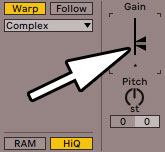
This can also help correct a vocal which was recorded too “hot”, meaning too much gain was used during the recording on the preamp.
What about a vocal which actually entered that clipping territory on the recording?
Hard Clip Your Vocals (When Necessary)
Even in cases where gain staging was taken into account when setting the preamp gain before recording, some vocal performances can still occasionally go beyond 0dB – the point of digital clipping.
This results in flattened peaks which manifests as harsh and distracting white noise on top of your vocal.
You can use something called a hard clipper to shave off the peaks which go into that clipping territory and smooth them out with subtlety to salvage an otherwise good vocal performance.
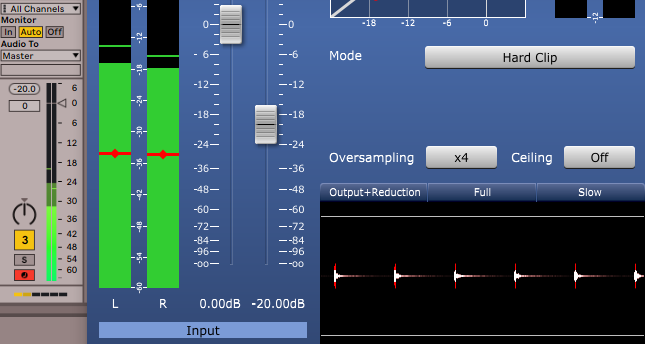
This is useful when the performance was solid otherwise or when you practically just can’t record that vocal again.
Tune Your Vocals
One of the most important requirements for how to make vocals sound professional is to make sure they’re in tune.
There are two obvious ways to tune your vocals: manually and automated (with an autotune plugin).
I actually prefer a combination of manual tuning as necessary with an autotune with conservative/subtle settings.
In my guide on how to tune vocals, I show how to isolate the sour note(s) and manually adjust them to be sharper or flatter as necessary:

You can see in the above example that I’ve lowered the pitch by 23 cents. That’s a bit more egregious than I would trust to an autotune which would need to be set to be relatively aggressive to correct this to that point that the listener would hear the tuning happening.
Part of the sound of vocals in professional mixes is not letting the listener hear the tuning occurring unless that’s the extreme aesthetic the producer is going for.
With that in mind, here are what I recommend for the best autotune settings using something like Antares’ Autotune:

The combination of the retune speed, flex tune, and humanize parameters all directly impact the sound of the effect.
The retune speed is the main driver, and I recommend setting this to 40 AT MOST (meaning no lower than 40) in most cases to avoid allowing the listener to hear that abrupt, robotic snapping effect. In other words, this makes the note adjustments take longer which sounds much more natural to maintain the human quality of the vocal.
Speaking of the human quality, the flex tune and humanize help maintain that natural sound by introducing a little variation on all notes and on held notes, respectively.
Again, the key to how to make vocal sound professional is addressing the most egregious sharp or flat notes (anything above roughly 10-15 cents) manually and using an autotune with transparent settings dialed in to tighten up the rest.
Control Plosives on Your Vocals
Plosive sounds are those surges in breath/air associated with “P” sounds which hit the mic hard and cause distracting gain spikes. Pop screens are meant to mitigate these on a recording, but they can persist in certain situations.
Ideally you want to control these before you hit your vocal with a compressor as these cause dynamic surges not representative of the vocal performance.
Fortunately, vocal plosives manifest in a very specific frequency range every time as I detailed in my guide on how to remove plosives from vocals:
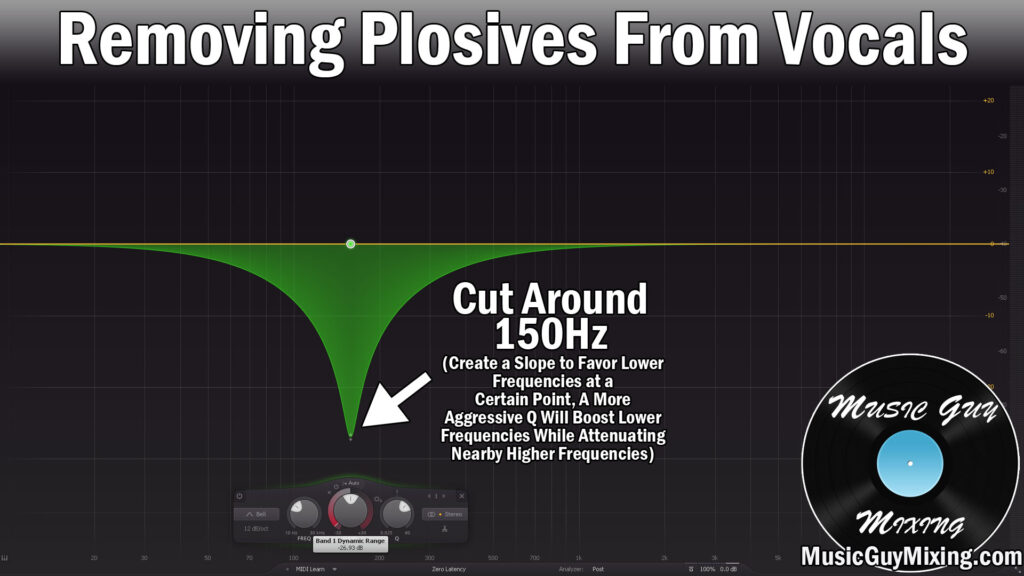
In the case of a plosive-heavy vocal (meaning any vocal with at least one distracting plosive), I like dropping an EQ with dynamic band control functionality early on in my chain with a band at 150Hz.
This means that whenever there’s an uncharacteristic surge on the vocal at 150Hz which only triggers in the case of a plosive, the band pulls down that explosion. You want to set the dynamic EQ’s threshold for that sweet spot so that it pulls out 3-5dB to attenuate and smooth out the plosive rather than remove it entirely which can sound unnatural.
This also ensures that the EQ only pulls down 150Hz in the event of a plosive, thus otherwise keeping the vocal relatively untouched in the lower end of the body.
I isolated addressing the plosives in their own section, but EQ is obviously extremely important for sculpting and enhancing any vocal, even one without obvious problems like this.
EQ Your Vocals
Vocal EQ is essential for cleaning up a vocal, carving out what’s not working and thus propping up and enhance what is.
This vocal EQ cheat sheet gives a snapshot of a number of effective moves to make on the vocal:

High Pass at 100-130Hz – High passing your vocal removes background noise and unmusical noise that you don’t want on the vocal. This goes a long way in cleaning it up. 100Hz is a good target for male vocals and 130Hz for female vocals but as I always say, a good rule of thumb is to create the filter lower and begin to sweep up until you hear an audible change. Headphones with a good low end response can help if you want to be especially precise.
Once you hear the vocal noticeably change, back it up about 10Hz and you’ve found the sweet spot for your vocal’s high pass filter.
Body – I just talked about the plosives frequency with regards to the low end of the vocal’s body.
The core of the vocal’s body, its fundamental frequency, exists typically somewhere between 200-300Hz. Like everything frequency related to vocals, this will be on the lower end for male vocalists and higher end for female vocalists as well as vary according to vocalist type/range.
I like a small boost in this pocket to help anchor that vocal and make it hit a bit harder and sit a bit better. If the vocal is too boomy in the case of certain vocalists who get immediately up on the mic and you’ve got TOO much body, you can do a small cut here. A dynamic cut can help proportionately cut as necessary.
Boxy Mud – I like a dynamic cut around 500Hz to control and limit the boxy, muddy, claustrophobic sounds on certain vocals which are a product of layering reflections and simply a range on the vocal which works to its detriment.
As I always say, aiming to pull 2-3dB at most via that dynamic cut around 500Hz creates clarity via subtractive EQ without necessarily having to boost in the higher frequencies we generally associate with brightness and clarity.
Adjust 1-2k as Necessary – Your vocal might not need any adjustments at 1-2k, but similar to the plosive control at 150Hz, this range has a very unique effect on the vocal with too much (or too little) gain there.
As I covered in my tutorial on how to fix a nasally voice in the mix, a dynamic cut around 1.5k can help disguise the effects on that vocal.
If the vocal sounds hollow typically due to poor microphone placement relative to the vocalist or in the room, you can add a small boost here to mitigate that effect.
3-5k Clarity – The clarity range on the vocal is that 3-5k, and you can instantly add some brightness with a boost here. This can also help that vocal to feel more immediate, bringing it forward in the mix and giving it more transient punch for vocals which aren’t asserting themselves as well as you’d like, even with the level properly set.
With all of these benefits, a lot of people make the mistake of boosting too much here, making the vocal sound thin or even harsh.
Keep reference tracks close at hand to keep every EQ or vocal adjustment in general in context. This will help you keep your adjustments in check when you hear what a professional sounding vocal sounds like by comparison.
10K Shelf – I like a small high shelf EQ around 10k to give me some of the benefits of boosting that 3-5k range but without the negative side effects. Most of this is because our ears aren’t as sensitive to this range, so the overtones here can add some welcome transient punch and crisp airiness to the vocal.
De-Ess Your Vocals
One last range that I didn’t talk about with regards to the vocal EQ but which deserves its own section is roughly 6-11k where sibilance rears its ugly head.
Vocal sibilance is the exaggeration of “S” and similar consonant sounds.
A de-esser is a special band specific compressor which targets surges in the 6-11k area on vocals on the worst offending sibilance and tames it via frequency specific gain reduction:

As you can see from the image above, OVER de-essing can attenuate these frequencies to a fault on the “S” sounds, resulting in the effect of a lisp on the vocal which isn’t inherent on the vocal.
This is why I like to adjust the range parameter (and threshold) accordingly so it doesn’t overly compress here.
If you don’t have a dedicated de-esser, grab a multiband compressor and use my multiband compressor to de-esser tutorial to get the same effect when you’ve got a vocal where the sibilance is pronounced and distracting.
Compress Your Vocals
Compression on vocals is typically a given, given that vocals are one of the more dynamic tracks in your mix as this sample vocal waveform illustration demonstrates:

Compression smooths out this dynamic range, achieving a more consistent level to make that vocal easier to fit in and giving it more energy in the mix.
One of the main keys on how to make vocals sound professional is striking the right balance on your vocal compressor.
My vocal compression cheat sheet shows a great place to start to find that balance:
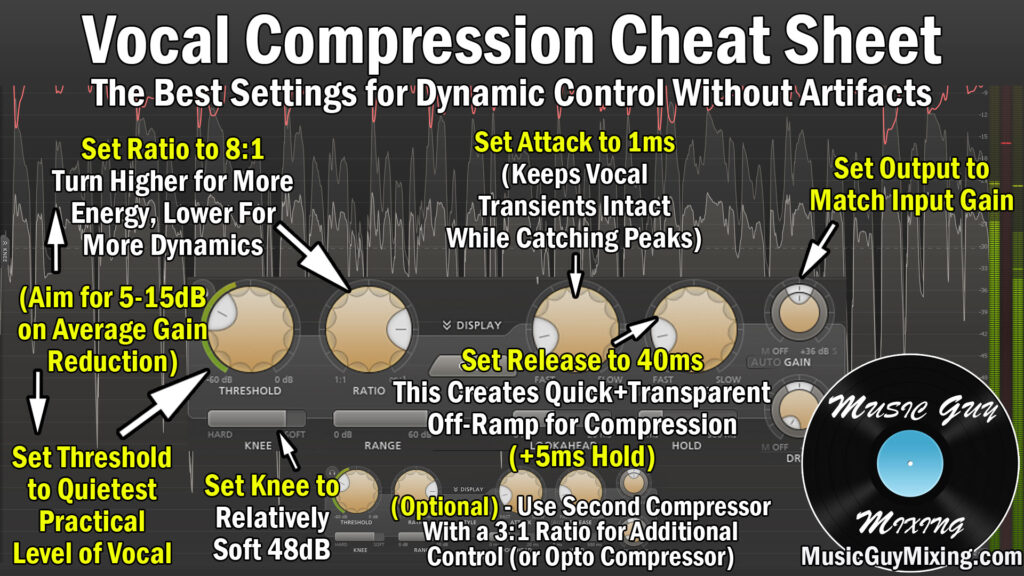
Threshold – I like to set the threshold at roughly the quietest (practical) level of the vocal. In other words, set this to capture the quietest word in the vocal. If you did the entire vocal as a single take and there’s a lot more dynamic range between the verse and chorus (as is usually the case), then I would create separate tracks for both sections so I can adjust the threshold(s) for each.
Ratio – The admittedly somewhat above average and more aggressive 8:1 ratio works well for vocals given the greater dynamic range typically associated with that type of track. You’ll note on the graphic I mention using a second compressor with a lower ratio which I’ll cover in a moment, but this initial compressor is doing a lot of the heavy lifting in taming the greatest peaks here at the start.
You should be looking to achieve anywhere between 5dB and 15dB in gain reduction on the higher end between the settings, depending on the dynamics of the vocal on those peaks.
Attack – 1 millisecond of attack delays it just enough to maintain those high frequency transients to help that vocal cut through while delivering the control and energy of fast, responsive compression.
Release – Your “off-ramp” that is the release works well for the relatively short 40 milliseconds. This keeps that compression just as snappy in releasing the vocal back to its uncompressed state from note to note as necessary.
Output Gain – Just a reminder to adjust the output gain to maintain that -18dB average level give or take to feed an optimal level into the next bit of processing. While this is especially applicable to compressors, this is a good rule of thumb for any type of processing in your mix which affects the level of your vocal.
Compress Your Vocals (Again)
An optical compressor like the CLA-2A from Waves is a great way to follow up your initial compressor to smooth out the remaining peaks and bring your vocal a little more under control:

With no parameters to really adjust outside of the threshold which is basically the “peak reduction” in this case, you want to aim for about 2-3dB in gain reduction on the remaining peaks to keep that vocal up front where it belongs like any professional sounding vocal.
Once again, remember to adjust the output gain to makeup for the gain reduction and maintain the same level coming out as is going in.
Use Spacial Effects On Your Vocals
I get it, reverb is cool. The problem many of us make is going overboard on the vocal reverb, just soaking it when the mix doesn’t call for it.
This either means the vocal has too much reverb on it relative to the rest of the mix, or there’s just too much reverb across the board when again, the song doesn’t call for it.
First, don’t discount the usefulness of vocal delay as a cleaner supplement to reverb. You get the effect of a reflection but without the color of reverb which can suffocate your vocal when overdone.
I like two different delays to give myself options in the mix for when I want to use each – one shorter and one longer.
The first delay is more of a slapback delay:

I’m using the ever reliable EchoBoy from soundtoys in the above example.
Here I’m doing a single echo and set to 1/32 a note of the BPM which produces an immediate and clean single reflection to add some fatness to the vocal.
You can filter the delayed signal to help contrast it from the initial sound and simulate some depth, as well, using your delay’s onboard high and low pass filters.
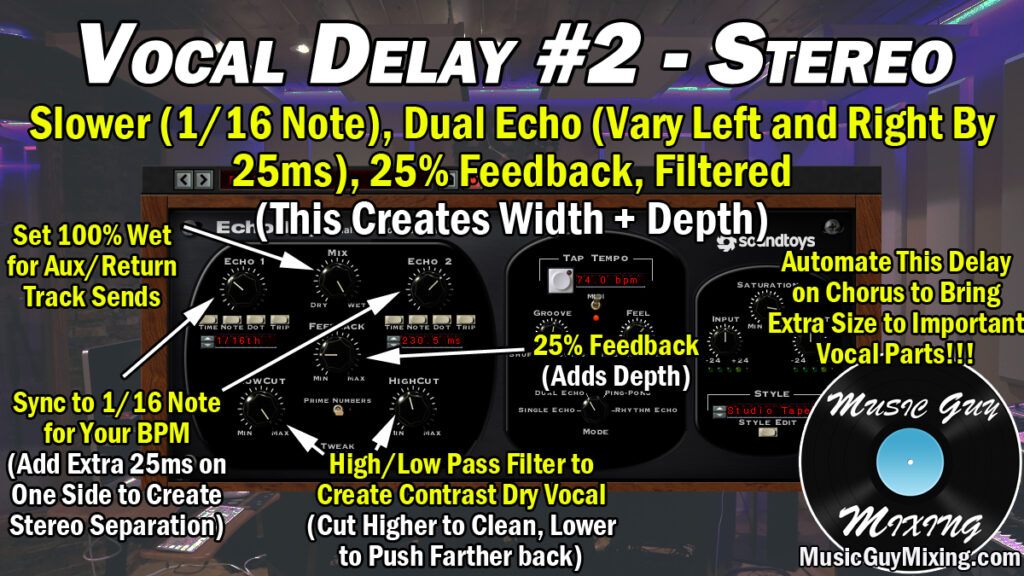
The second delay is a dual echo where I’m doubling the delay to 1/16th notes and adding in roughly 25ms on one or the other side to create a little separation between the two.
I also like dialing in a little feedback to give it more of a tail and additional reflections to simulate depth, and the filter cuts once again also help to simulate this.
As the graphic suggests, automate more of this delay up for the chorus on your vocal to give your vocal some added depth.
Similar to the delay, I like a couple vocal reverbs to introduce more depth to the vocal to get it setting just right:
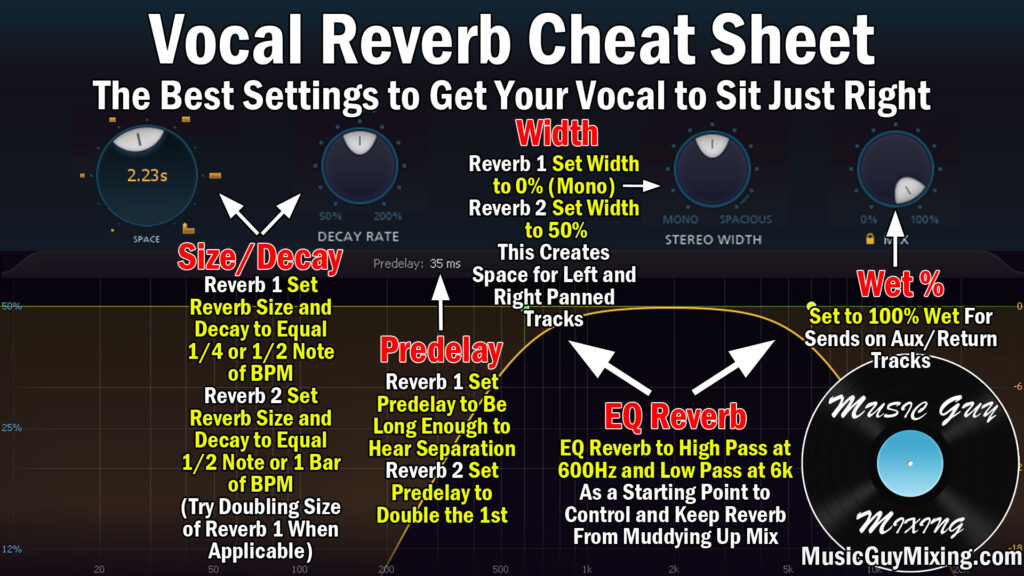
Similar to the delays, as well, I like to double the settings from one reverb to the other. This includes predelay to create some separation from the dry audio, and increasing the width on the second reverb.
I like to EQ my reverbs, as well, to clean them up and keep them from clouding up the mix, especially on the low end with a high pass filter around 500-600Hz.
This is typically easy to do with onboard filters like the FabFilter Pro-R has stock, or you can simply follow them on their Aux/Return tracks you’re using (or should be) them on with an EQ which has these filters in place:

Make sure you set the “Mix/Wet/Dry” percentage to 100% when using reverb (or any effect) as an Aux/Return track and send so that when you turn up the send dial for any vocal tracks, you’re exclusively blending in that reverb signal and none of the dry vocal on top of it.
You can also use chorus on your lead vocal effectively with these settings:

In this case, I’m using the effect near the end of my vocal chain, post-compressors. That’s why I have the Mix percentage at roughly 20% which adds some nice width to your vocal.
When I want wider vocals, I reach for my special sauce that is MicroShift:

This is purely for adding some width, dropped on its own Aux/Return track then blending in the amount to taste via the vocal’s send dial, typically on the chorus.
Pan Your Vocals
Speaking of vocal width, another of the keys to how to make vocals professional is proper panning.
The lead vocal should be dead center 99% of the time, but anything which constitutes as backing vocals can be panned as such:
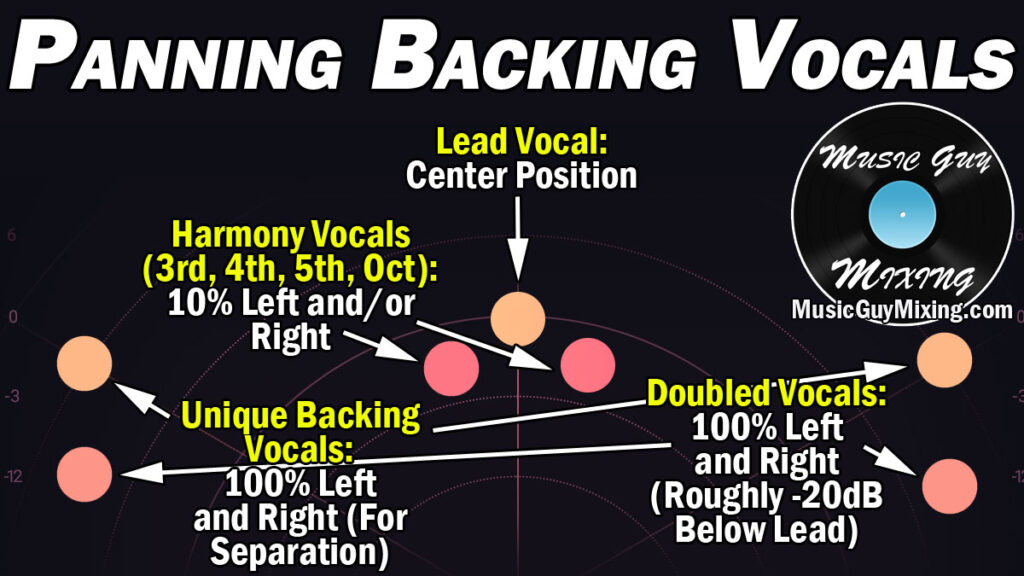
Once exception to that lead vocal centered rule is when you’re double tracking the vocal and want to pan one hard left and one hard right which is becoming more common.
You can find the sweet spot for the level on one of them, then turn both down 6dB and split them hard left and right to roughly find the right balance.
Automate Your Vocals
One last hallmark of how to make vocals sound professional is to automate your vocals.
Volume is the most common form of vocal automation, turning it up and down to ensure its level is always on top of the music as I demonstrate in my overview on vocal automation:

While the compressor(s) go a long way in achieving that, sometimes the instrumental swells and you need that vocal to join it to stay up front for dial up the energy of the entire moment in the mix.
You can also use a vocal rider like Waves’ Vocal Rider or the free Vola 2 to automatically set a level the vocal should target and react to:

Similar to the autotune we covered closer to the top, I like to use both on most of my mixes. The vocal rider keeps the level moving slightly, adding a little life into the vocal by way of that ever-changing level, while the rare manual adjustment can be used as necessary to keep that vocal on top of the mix.
While the level itself is the most obvious candidate for vocal automation, mixing automation comes in many forms. Dialing in more or less of the delay or reverb or even width at different points of the song helps the biggest moments hit harder.
This is done through the impact of the effects themselves as well as the contrast from other points in the song where the vocal is more vanilla comparatively.
With these 11 tips put to good use, your vocals should be sounding like the pros and sitting just right in and above the rest of your mix!
