
Reverb is an effective way to add size to your vocal either in key moments or across the entire mix. This quick and effective guide will detail how to add reverb to vocals, including the best settings.
How to Add Reverb to Vocals

First, let’s talk the practical aspect of how to add reverb to vocals.
Insert Vs Send Reverb
Whenever you’re using any effect in your mix, your options are either as an insert or as a send/return track.
An insert refers to dropping the reverb plugin directly on the vocal track you want reverb on. When you want to create a one-off effect on a single vocal, like a vocal throw, using it as an insert works well.
For more practical and typical vocal reverb, you’re better off using it as a send.
This means dropping the reverb plugin on an Aux/Return track in your mix.
These are special tracks which are exclusively used to house effects to apply to tracks in your mix en masse.
In my DAW, Ableton Live, they’re referred to as “Return” tracks, but they’re called “Aux” tracks in other DAWs:

Essentially you just drop the reverb plugin on the track, dial in the settings for that reverb, then blend it in with your vocal(s) of choice with the send dial for those respective tracks.
The reason I like to use vocal reverb in particular as a send is it allows me to use one instance of the reverb plugin and apply it to multiple tracks at once.
You can use as much or little of that effect on as many tracks in your DAW as you like.
In addition to saving processing power to keep your mixing playing more smoothly by only requiring one instance of that plugin, it creates a sense of cohesion across every track you apply that reverb to. This is because all of these tracks are using the same reverb settings, giving the sense that they all exist in the same space and giving your mix a more natural sound.
Speaking of those settings, let’s get to the most important aspect of how to add reverb to your vocals.
Vocal Reverb Settings
I actually like to use two different reverbs on my vocals with different settings.
The first reverb of the two has shorter settings whereas the second one typically doubles the lengths/settings of the first one. I’ll talk more about how to use each of the two reverbs in a moment, but first let’s cover those settings.
First you need to do is create two Aux/Return tracks in your mix, then drop an instance of your reverb plugin of choice on each.
I’m using the FabFilter Pro-R reverb for this example, but virtually all of these parameters can be found on any reverb you’ll be using, including the stock (free) one(s) which comes with your DAW:
Now let’s quickly go through each parameter to example why I’m setting them where I am and how they work on your vocal.
Predelay
Reverb predelay refers to the amount of time in milliseconds after the vocal begins to play before the reverb is heard.
This simulates the natural reflections of a room associated with real reverb, and the longer the predelay time, the larger the size of the room you’re simulating.
Just like with the delay size/time, you can use this calculator to find the perfect predelay time based on the tempo/BPM of your mix.
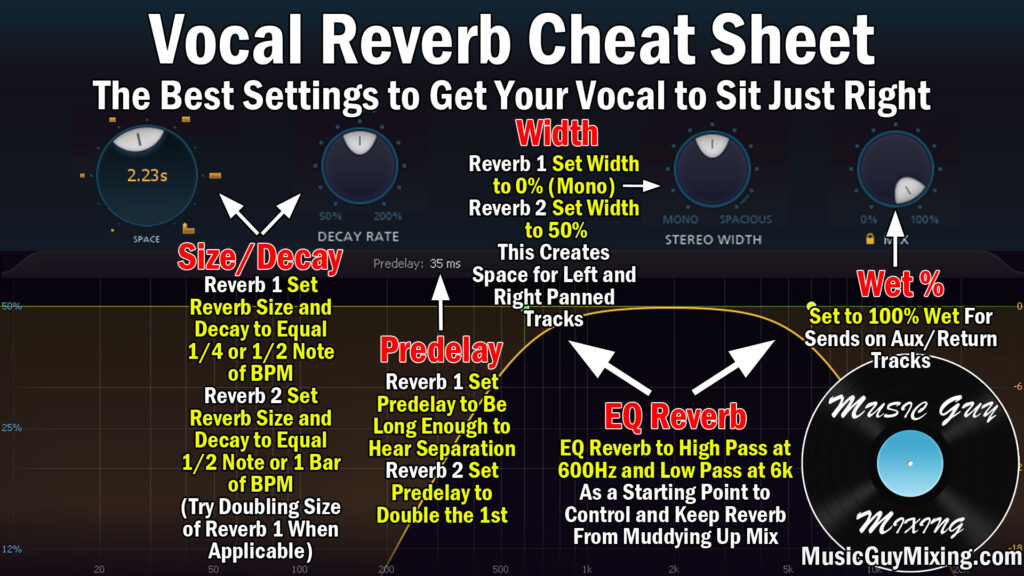
Note that in the vocal reverb cheat sheet listed above, I give the settings for both the first and second reverbs which, as I mentioned a moment ago, typically are in proportion to one another.
Using that calculator, for a 120BPM tempo song/mix, 15.63ms would be a good predelay for our first reverb, simulating the reflections of a smaller room.
Our second reverb would double that, so set that to 31.25ms (in the case of a 120BPM mix).
Size/Time/Decay
The size/time/decay refers to the length of the reverb and is the main driver of the sound. This is the length of the delay.
Note that there are a lot of semantics at play between reverb plugins; some refer to this as the “size”, others as the “time”, and others as “decay”.
With my FabFilter Pro-R (again, pictured above), it allows you to adjust the delay time with the decay parameter to offset it and cut or add additional time (we’ll just be leaving this at 100% for this example so the time isn’t altered one way or the other).
A larger/longer delay time setting here will create a darker, more low and mid heavy frequency sound sound whereas a smaller/shorter setting here will create a brighter, almost metallic sound.
In keeping with our 120BPM example and using that calculator, our shorter and first reverb would use 984.38ms delay time.
Our longer, second reverb would double that with a 1968.75ms delay time.
Before we adjust any other parameters, the former will be much brighter in addition to being obviously shorter than the darker, longer by comparison second reverb.
The calculator helps to ensure that the delay lasts and completely fades in time with 1/2 bar and a full bar of our BPM, respectively (with the two reverbs).
This keeps the reverb snappy and clean, additionally keeping the tail from overlapping and spilling onto the next beat, allowing for cleaner drums and other instruments in the mix.
Width
The width of the reverb is just that – how far it spreads left and right of the center.
Your instinct may be to set your vocal reverb width to 100%, but there are a couple caveats here.
First, depending on the reverb, 100% might not represent what you think. In FabFilter Pro-R, 50% represents true stereo, meaning the reverb signal spreads from the center all the way to the sides of your mix.
Setting this to 100% and beyond focuses that reverb on the sides, even amplifying it. This can be useful when you want to keep the center of the mix especially clean, but there’s another way to do this I’ll cover next.
100% might be treated differently with your reverb, so it’s something to be aware of.
Essentially, for my first and second vocal reverb, I like to set the width to 0% and 50%, respectively (in the context of Pro-R).
This keeps the first reverb tight and gives the vocal some center depth while that second reverb encompasses the entire stereo field with its reflections.
EQ
Reverb gives your vocals a lot of desired size in width and depth, but like any reverb it can clog up the mix with low and mid heavy reflections.
This is why I typically like to filter my reverbs using a technique pioneered back in the 1960’s at the fabled Abbey Road studios.
Fittingly referred to as the Abbey Road Reverb trick, this involves dropping an EQ after your reverb and high and low passing at 600Hz and 6kHz, respectively:
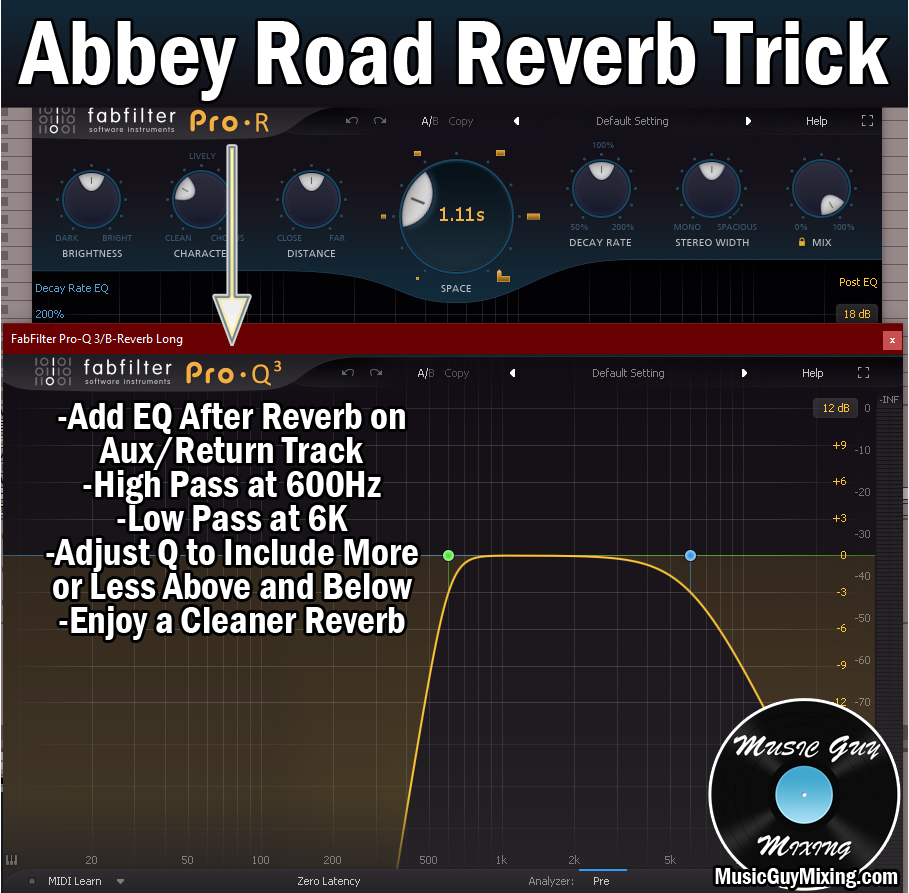
What this does is manually remove all trace of the sound of the reverb below 600Hz and above 6000Hz.
It’s the below 600Hz which is especially key as this ensures that the low end of your mix is kept nice and clean, avoiding one of the major causes of a muddy mix.
At the same time, you get to keep most of benefits of the reverb and the depth in that roughly 600Hz to 6000Hz window.
I say roughly as this doesn’t have to be a hard rule; you can extend the reverb on either side for more of that size intact. It’s certainly safer on the first and shorter of the two reverbs to go a bit lower with that high pass filter to include more of that reverb signal, but it’s your prerogative.
It’s worth mentioning that most reverbs have built in filter controls which you can also use in place of your manual filters, but to really ensure you have full control over any additional reflections which might not be addressed by the onboard EQ, following each reverb with an EQ is the way to go, adjusting that 600Hz to 6000Hz window to taste.
Wet/Dry/Mix
We end on an easy one; whenever you’re using reverb as an Aux/Return track and consequently as a send, set the “Mix” percentage to 100%.
This is because, in the case of ANY Aux/Return track used as a send, it’s that send dial/knob which is acting as the mix blend.
We want that Aux/Return track to be entirely (100%) the effect, then use the send dial to achieve the wet/dry blend that we want.
It’s only when you’re using effects as inserts that you’ll want to drop the Mix/Wet/Dry percentage below 100 to create your custom blend on that single track itself.
Additional Reverb Parameters
It’s worth mentioning that other reverb plugins may have additional parameters to further customize the sound.
The most recent version of Pro-R has additional controls for coloring the sound of the reverb, so adjust these to taste:

In general, I like that first and shorter reverb to be brighter than the second and longer reverb, so I’ll reflect this via any additional parameters I have access to.
How to Use the Two Vocal Reverbs Together
Now that we’ve got both reverbs set up, it’s time to decide how to use each one in the mix.
I typically reserve the longer reverb for more important and impactful moments in the song.
This means using the shorter reverb more liberally but saving the longer reverb for the chorus vocal, or automating more decibels of the longer reverb on my chorus vocal via the send dial for that track when the chorus hits.
This helps that chorus vocal stand out more and further emphasize the chorus in general, making it hit harder for the listener.
I like automating more influence on both reverbs for bigger moments in the song as this helps to keep the mix more dynamic and lively (see my overview on mixing automation on how to do just that).
How to Add Reverb to Vocals Tips
- Use vocal reverbs on Aux/Return tracks and blend them in via sends to achieve a sense of cohesion across the many vocal tracks using the same reverb settings.
- Use two reverbs on two separate Aux/Return tracks to create two different sizes of reverbs.
- Use a reverb calculator to match your reverb(s) lengths to the BPM of your mix to keep the reverb lengths tight and from overlapping with and stepping on the next beat.
- Double the predelay and size/delay time of the initial reverb on the second reverb.
- Adjust the width and additional “coloring” parameters of the two reverbs to taste (mono and full stereo, respectively, can work well for width).
- Reserve the longer reverb for the chorus or automate more of it or both reverbs for more impactful moments in the song to further emphasize those moments.
