The analog mixing strips on SSL or Solid State Logic mixing boards have been a necessity in professional studios for years because of the versatility and quality of results they’ve boasted on countless best selling records in top-40 music and beyond. Using an SSL style plugin like the Waves SSL E-Channel to recreate a combination of analog effects in one piece of software can give you an analog sound right in your DAW. It’s especially useful on vocals to quickly get them EQ’d and compressed, so I thought I’d share my best SSL vocal strip settings for getting your vocals sounding their best via SSL channel processing.
SSL Vocal Strip Settings
As I go through the best SSL vocal strip settings for getting your vocals quickly in shape in your next mix, note that I am indeed using the Waves SSL E-Channel plugin. A solid (no pun intended) free alternative you might check out is CHANNEV by Analog Obsession:

Now let’s get to the overview on the best SSL vocal strip settings to use.

Note that while you can use use this plugin for sidechaining, gating, or even adding in some simulated analog saturation to your audio, I’m strictly using this SSL vocal strip for its EQ into compression combo.
SSL EQ
Let’s begin with the EQ side of things on the left and go step by step with the moves I’m making, and just as importantly WHY I’m making them. I’ll be going by frequency rather than top to bottom with the layout of the SSL strip.
High Pass Around 100Hz
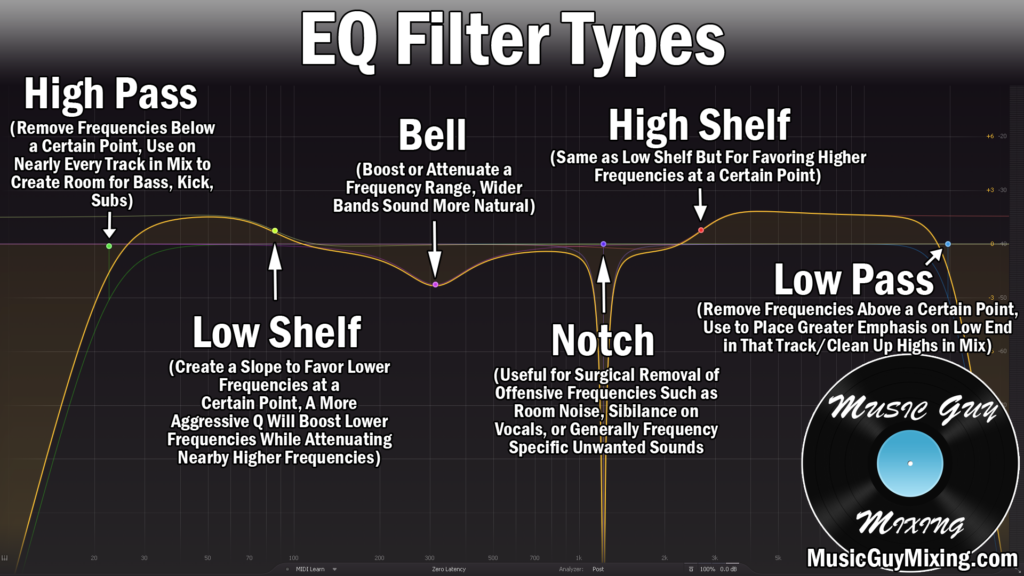
The top of the strip offers both high and low pass filters for rolling off the bottom and top ends of your audio, respectively.
High passing your vocal at roughly 100Hz does a lot to clean it up and remove ambient noise and unmusical noise which isn’t contributing to the vocal:

You may need to be careful with deeper male vocalists, but note that you can high pass more generously beginning around 130Hz for female vocals.
A good rule of thumb is to put the filter on and sweep up as you monitor that vocal until you hear it change. From that point, back it off 10Hz or so.
For backing vocals, I like to go even higher to create more contrast and keep that low end of the vocal exclusive to the lead(s).
Low passing your vocal is less urgent and completely optional, but you can safely cut at 20k without worry of losing anything audible.
Boost at 250Hz for Body
The fundamental frequencies of the vocal exist in that 200-300Hz range.
I like to boost around 3dB via a bell shape to add some power and anchoring to that vocal, particularly the lead vocal.
This goes a long way in giving it some subtle gravitas and, more objectively, some fullness in the ears of the listener.
Cut at Roughly 500Hz
I like a 2dB or so cut around 500Hz with a Q setting of 1.35 on the SSL vocal strip to add some clarity by cutting out the mud.
This is known as subtractive EQ – not only are we cleaning up some unflattering frequencies, we’re emphasizing the rest of the vocal and namely the higher frequencies as a result.
Boost Around 4k for Clarity
If you find you still want a bit of clarity, try a boost of 1-2dB around 4k to bring out more presence and clarity punch in the vocal.
I like that same, relatively wide 1.35 Q for this boost.
Just be careful not to boost too much here; while the brightness sounds good and brings that vocal up front, it can quickly crossover into that harsh and grating territory if you get carried away (see more tips for taming a harsh vocal).
Boost/Shelf at 10k for Presence
We’re crossing over from the punchy frequencies to the air of the vocal in the 10k region.
I like a small ~2dB boost around 10k on vocals on the SSL vocal strip – just be sure to leave the bell option unticked this time as this creates more of a high shelf for the top end up and to that optional low pass filter we covered earlier.
This boost gives the vocal some pleasant crispness, not to mention keeps it more present in the mix by way of the top end of that punch.
SSL Compression
Now let’s cover the right side or the dynamics management of the SSL vocal strip or in other words – vocal compression.
Threshold
The two thresholds together will help shape the compression or better said amount of your vocal which is getting compressed.
This is to taste and will obviously vary depending on the input level of your vocal, not to mention its dynamic range.
For what it’s worth, in this example with the vocal I’m working with, there’s a practical dynamic range of roughly 10dB, and it’s been gain staged to peak around -10dB.
As you can see, I’ve got both thresholds set to roughly -20 to -25dB.
Ratio
The compressor ratio determines the aggressiveness and degree of the compression itself for the audio which exceeds the threshold.
As I covered in my overview on the best compression ratio, I prefer an aggressive 8:1 ratio on vocals when my compressor is the first one in the chain.
Not only does this help to instantly tame and control an overly dynamic vocal, it helps to ensure that vocal is kept up front which is my goal in the majority of my mixes (see how to keep your vocal up front).
In the case of using an SSL vocal strip, this is generally the first compression in my chain, hence the preference for 8:1.
I like to follow this up with a gentler and more transparent compressor to smooth out the remaining peaks a bit (see how many compressors to use on vocals).
As I covered in my overview on the types of audio compressors, an opto or optical compressor works well in this role.
Attack
The attack determines how fast the compression engages once the threshold is met.
While it’s generally measured and set in milliseconds, the E-Channel from Waves keeps it simple with either a slow or fast attack. The former is more responsive whereas the latter, when engaged, sets the attack to roughly 1ms.
If you find you’re losing your transient punch with the fast attack engaged, leave this off.
Release
The release is the off-ramp for the compression. On this vocal SSL strip, this can be adjusted anywhere between .1 and 4 seconds which is admittedly pretty slow compared to most non-console, modern compressors.
I find .2 seconds is plenty of time to create a smooth transition once that threshold is no longer met.
Output Gain
Lastly and very importantly, don’t forget to set your output gain to match whatever gain reduction was created by the compression in order to maintain gain staging as you send the signal to the next plugin in the chain.
By now, if you engage and disengage/bypass the SSL vocal strip, you should find that your vocal is sounding appreciably better.
Keep in mind that the above template is simply an effective jumping off point and each vocal will vary from singer to singer and recording to recording, not to mention the dynamics the performance calls for.
As such you’ll likely need to tweak each parameter, particularly the EQ for when you want a smaller or bigger adjustment at each point.
While the SSL vocal strip knocks out a lot of the work and gets us much closer to our goal, there is a lot more you can do to improve your vocal here in the mix.
Check out and apply my COMPLETE vocal chain to your vocal to get the “star” of your mix sounding its best.