As I recently covered, New York Compression is a type of parallel processing which can add energy, sustain, and life to any track in your mix. Let’s talk how to create New York compression specifically in Ableton Live to get that same benefit using the stock compressor in my DAW of choice.
How to Create New York Compression in Ableton
As I mentioned in the guide I just alluded to, New York compression, also known as parallel compression, makes use of extreme compression settings to achieve its goal.
Specifically, the goal in parallel compression is to absolutely squash the dynamics of your audio so that there’s virtually zero difference between what were the quietest and loudest points of that track.
The important distinction with any kind of parallel processing is that you’re applying the settings to audio which is duplicated/independent of the original audio.
The “dry” audio, so to speak, remains untouched; we’re creating a duplicate of that audio to apply these extreme settings to.
While there are multiple ways to set up New York compression in Ableton Live, the best option is to use a “Return” track in Ableton Live.
This creates a dedicated track we can put our New York style compressor on with its settings and apply it to MULTIPLE tracks in our mix rather than just one if we so choose. This saves us time and processing power so we can mix more freely without delays or artifacts as a result of overloading the CPU.
Let’s talk how to set up New York compression in Ableton Live by way of a return track.
Step 1 – Create a Return Track
As I just alluded to, a return track (also known as an Aux track or bus in other DAWs) are handy when you want to apply the same effect to a lot of tracks at once.
There are a few ways to create a return track in Ableton.
You can create one either from the “Create” section of the top menu, by typing Ctrl+Alt+T, or right clicking while in the Session View and selecting it from the drop down menu.
You’ll see your new return track appear over on the right side of session view. If you don’t see anything change on the right side, make sure the “R” button is ticked over on the right side of the interface in session view as this hides/reveals the return tracks. You might untick this when you have so many return tracks that they’re taking up too much real estate in the interface.
Regardless, this is what they look like:

You can rename them by right clicking in the colorful area at the top of one of them and selecting “Rename” (or you can highlight one and type Ctrl+R). You might want to rename it “New York Compression” or something similar as a means of better keeping track of what that specific return track is meant for.
Step 2 – Put Compressor on the Return Track
Next, put a stock Ableton compressor on the newly created return track.
You can do this by double clicking on “Compressor” under Dynamics while the return track is selected, or you can just drag and drop it on.
Step 3 – Dial in the New York Compression Settings
Here are the settings I like for New York compression in a single snapshot on your Ableton Live compressor:

As you can see and as previously mentioned, we’re going for much more aggressive settings than we would normally dial into a compressor in our mix in most cases.
Ratio
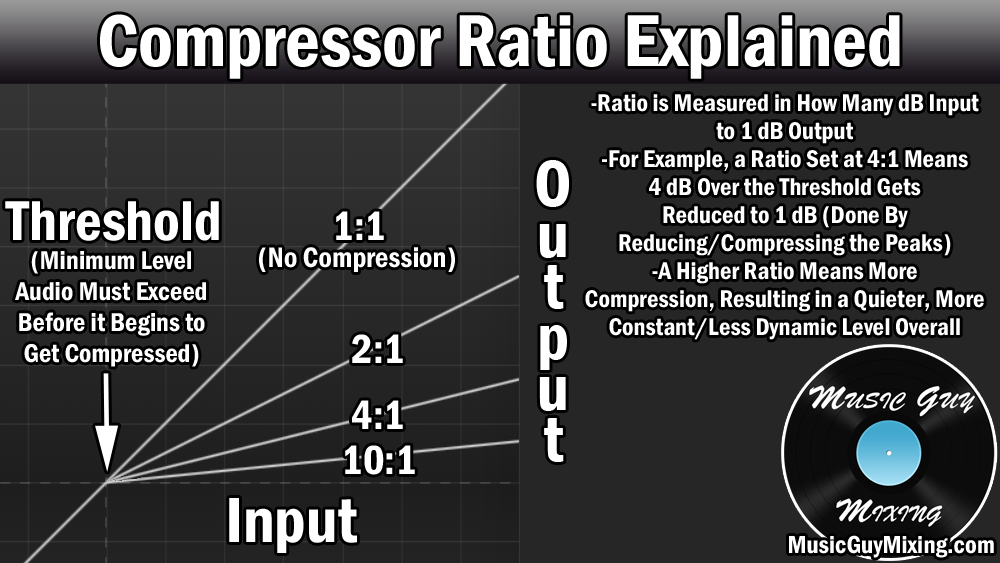
The ratio is always the main driver of the effect on any compressor as this dictates how much the peaks or audio over the threshold is getting attenuated. A pretty standard ratio is 4:1 as this tows that line between getting some compression while maintaining some level of dynamics.
With New York compression, we’re maxing that ratio out so that any decibel which exceeds our threshold is absolutely squashed. The effect is that we’re essentially removing the dynamics from the audio altogether. This is the secret sauce to the New York/parallel compressed sound.
On Ableton’s compressor, its max is referred to as “inf:1” which basically is just a way of saying “we’re not going to measure this, but suffice to say everything is going to get output at the same volume if it’s going over the threshold” – my words, not Ableton’s mind you.
But yes, set it to infinite.
Threshold
The threshold is the level at which the audio must reach before it will begin to get squashed (compressed) at that infinite to 1 ratio. When dealing with New York compression, we want to set this to encompass our entire practical performance for that track.
In other words, set your threshold to just below the quietest practical moment of the performance.
For a vocal track, this means setting it below the quietest word, syllable, or note in the performance. This also means NOT setting it so low that you’re picking up the sound of the computer fan, air conditioner, etc.
Knee
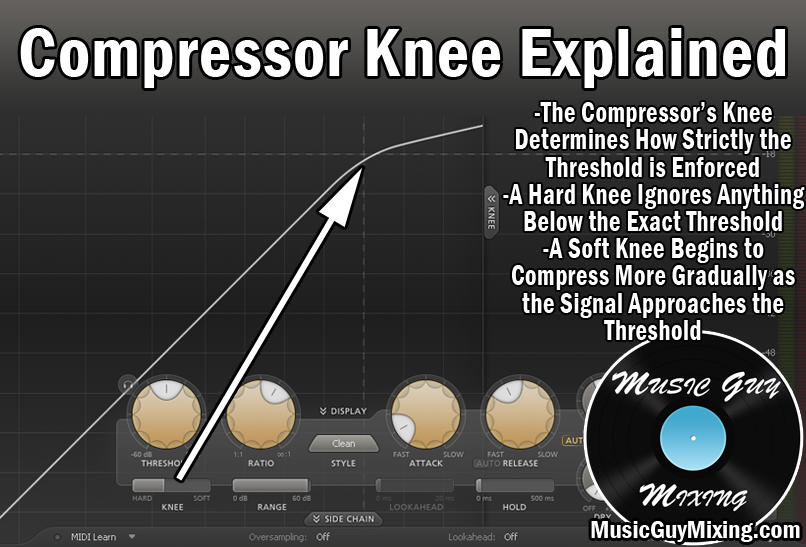
The compressor’s knee determines how strictly that threshold is enforced. A larger number means a softer knee which basically means the compression will begin AHEAD of that threshold being met. The softer the knee/higher the number, the less the threshold will be regarded.
Considering I just reminded you to basically set the threshold so that we’re compressing the audio and not room noise, you’re going to want to set a harder knee so that the threshold is strictly enforced.
To put it another way, a hard knee is important with New York compression so that we don’t accidentally also sweep up unwanted low-level noise and include that in the mass of sound we’re creating by way of that New York compression.
This is where using New York compression on a return track comes with a caveat – if you’re applying this effect to multiple tracks in your mix, you need to be very mindful of where that threshold is as different tracks can have different thresholds.
This is another reason why gain staging is so important; it not only feeds a more optimal level into any and all processing on an individual track and keeps your mix at a responsible level, but it helps a lot of tracks to share a more similar practical floor.
Attack
Attack offsets the compression even after the threshold is met. Normally we want a bit of attack (measured in milliseconds) to offset compression long enough to allow that initial “punch” of a track (also known as its transient) to come through uninhibited, grabbing the listener’s ear.
We have our dry audio with its transients intact, so in the case of New York compression we can afford to set that to instant to ensure we just get a big lovely squashed blob of sound from the very first palpable transient.
I generally set this as low as it will go on Ableton’s compressor, or 0.01ms which is instant.
Release
When the threshold is no longer met, the release time we set on this compressor will determine how quickly the compressor disengages. Setting this to instant can cause artifacts while setting it too long can possibly bring up some room noise we missed or couldn’t account for after our intended audio finishes.
TL/DR – set this to 100ms.
Makeup Gain and Wet/Dry Blend
I like engaging the makeup gain especially when applying multiple tracks to this New York compressor as is the idea with using it on a return track. This attempts to automatically and reactively makeup for the gain reduction. We’ll be controlling the influence of any tracks we want to use this effect on via their respective send dials in a moment, but this helps to give us a relatively even volume.
Lastly, in the case of any kind of parallel processing, we want to set the Wet/Dry parameter to 100% so we’re exclusively getting the fully compressed audio from this effect. Remember that we still have our “dry” audio untouched; we’ll be controlling the wet dry blend essentially by way of the send dial. Speaking of which…
Step 4 – Apply New York Compression Via Send Dial
Now that our return track is set up with the compressor set to New York compression settings, the last step is to blend this effect in with our track(s) of choice.
Here are a few vocal tracks in my mix. In the bottom section of each, you can see the send dials for each of the five return tracks I have set up (in this example):
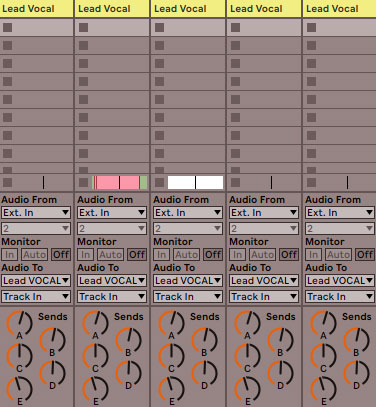
Let’s say that our New York compression return track is the first one (A). We would just turn that dial (A) up as that lead vocal plays (ideally in the context of the entire mix) to get the blend we want.
Regarding the best blend, in going back to the recommended New York compression settings in Ableton image higher up, I recommended turning this up until you could just hear that New York compression affected audio alongside the dry audio.
Once you get there, turn it back down 1-2dB. I find this is generally the sweet spot for “feeling” rather than hearing the impact of that squashed audio underneath the dry audio.
The effect is that that lead vocal (in this example) suddenly has just a touch more energy, size, and even sustain in the mix.
If you want more energy, you can leave it up that extra 1-2dB – it’s your prerogative as to what sounds best in that specific instance.
Try this on any track in your mix which you feel is lacking or missing that something you can’t quite put your finger on.
Don’t hesitate to use it on busses, as well, in additional to regular tracks. In addition to my lead vocal, I love a bit of New York compression on my drum bus to give it a kind of raw, live room energy.
You can even add some parallel compression on your master bus, so refer to my tutorial on how to process your master bus for more information.
Check out my overview on Ableton’s stock plugins for more tips on how to use their excellent assortment of built in effects.