Autotune and reverb are a standard combo or better said cogs in a bigger machine that is good vocals either in studio or live. Let’s talk autotune and reverb, offering options for plugins on both to get your vocals tuned up and give them a sense of depth.
Autotune and Reverb

When it comes to my vocal chain, I generally open with autotune to get it in there before any other processing.
This is one of those relatively clean effects which isn’t dependent on anything else so you can slide it in anywhere. Because it’s not even dependent upon the existing input gain of your track, I slot in my autotune ahead of my gain staging plugin right at the start:

As you can see at the “end” of the chain, I typically use reverb as a send, but we’ll get to that in a moment.
It’s important when using autotune that you understand what your goal is with the effect going into it. Autotune is obviously an effect which tunes up your vocals, but you can use it conservatively or aggressively, depending on your goal. In the case of the latter, aggressive autotune settings will give your vocals the “Cher” aesthetic effect. This may be what you’re after to give your vocals a pop friendly, robotic sleekness in an aesthetic touch.
To achieve that effect, you simply need to max out the settings, particularly the retune speed on your autotune plugin of choice. When notes snap into each other without a natural transition, you lose the human element and get that aesthetic effect.
Best Autotune Settings
If you want a more subtle and natural effect from your autotune plugin to simply adjust the notes without tipping to the listener that you’re using autotune, here are the best autotune settings:

As you can see above, these settings will keep your vocal (or other audio) in tune without losing its natural expression.
Before I get into the settings, note that pictured above is Antares Auto-Tune which is my pick for the best autotune plugin. Antares actually pioneered the genre back in the late 90’s, and their latest plugins are still the industry standard. That said, you can grab a free autotune in Graillon, as an alternative.
While Graillon and other autotune plugins have slightly different parameters or names for the parameters, you’ll find some of these on most options out there, so let’s take a quick look at each one.
Input Type
The input type helps the plugin apply the right flavor of autotune to your vocal to get better results. Most of them are vocal range related, like “Low Male”, “Alto-Tenor”, or “Soprano”, so pick the best option which matches your vocal type and move on.
Key/Scale
The key and scale chooses the notes the plugin will include/exclude. Unless otherwise specified, choosing the wrong key will exclude notes which are included in your vocal, potentially forcing your vocal to the nearest (wrong) note. Another easy parameter to set to match your song’s key and move on.
If you have a song which has key changes relative to the root of the song itself, then you can simply tick and untick the notes your vocal includes/hits.
Retune Speed
I alluded to this a moment earlier – the retune speed affects how quickly and therefore naturally your vocal moves from one note to the next. If you set this to the max which is essentially “1” all the way to the right, each note of the vocal snaps to the nearest in tune note within 1 millisecond.
This manifests on the aggressive end with that aforementioned robotic sound as even the best vocalists have a natural slide between notes.
If you’re looking to keep your vocal sounding natural yet in tune, aim for roughly 40ms. As you listen back to your vocal and it sounds a little off in the sense that you can hear the autotune working, knock it back to around 50ms. It’s rare that I’ve had a vocal where I’ve needed to dial this back even farther for what it’s worth, so that 40-50ms window is the sweet spot in my experience, depending if you want to be a bit more conservative with it.
Flex Tune and Humanize
Two more parameters which I’ll group together which also have a large bearing on the sound of your vocal via the autotune are flex tune and humanize. Flex tune affects how much wiggle room the autotune gives the vocal to stray from the correct note in general and humanize focuses on sustained notes.
So if the retune speed affects how quickly a note snaps into place, flex tune and humanize can maintain the human quality of the vocal to note stay locked on a note for its duration, no matter how long that note is held.
The middle of the road, conservative setting of “50” works well for both of these parameters if you’re interested in maintaining the natural quality of your vocal.
Best Reverb Settings
I like to feature reverb as a Return track, allowing me to feed it into as many tracks, vocal or otherwise, as I like (hence the mention in the vocal chain graphic above). I put together a complete overview on how to do just that, so refer to my Return track guide for more information.
With your reverb of choice dropped on a Return/Aux track, these are the best vocal reverb settings:
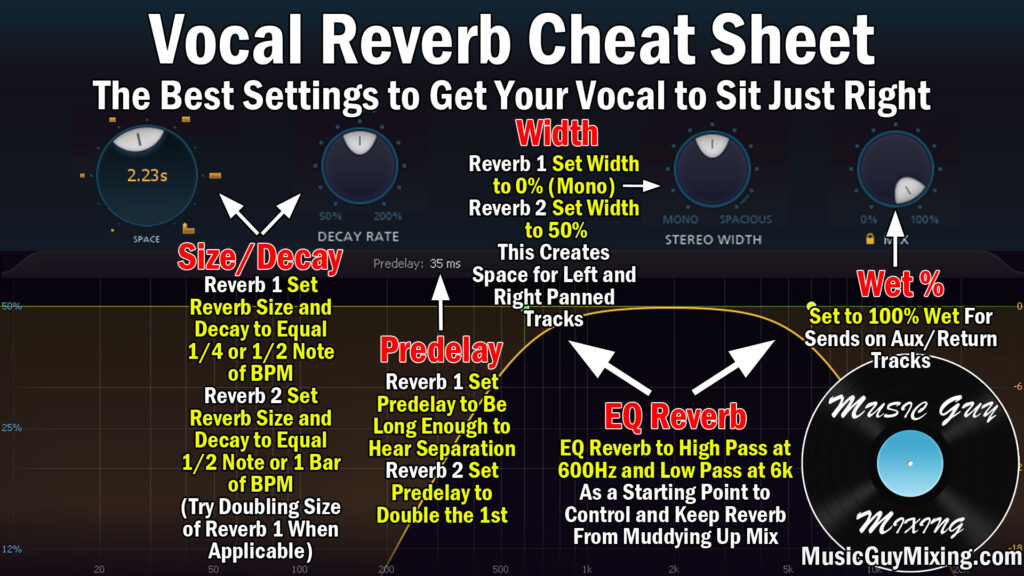
Again, your reverb parameters may vary slightly; above pictured is the FabFilter Pro-R which is my favorite reverb for its versatility.
Still, most reverb plugins have the same parameters give or take, including:
Predelay
I like to set up a couple different reverbs, one each on a unique return track. Essentially one is twice the size of the other in both predelay and decay.
I also say you can use a tool like this one to calculate the idea predelay time (the time after audio plays before the reverb plays). That said, a lot of reverbs allow you to sync it with your track (like Pro-R).
Size/Decay
The decay is the size of the reverb or how long it will ring. A larger decay/size/tail/etc. means a larger sounding reverb which simulates a larger room.
Again, I like to sync this to my song’s tempo from anywhere from a 1/4, 1/2 or full note (with the first one being half the size of the second reverb). This helps to keep the tail nice and tight with your song’s tempo.
Width
The width is just that – the width of the reverb itself or how much space in the stereo field it takes up outside of center. You might keep the first one at 0% so it’s mono and set the other to 50% (which in many reverb plugins means the full stereo field).
Filters
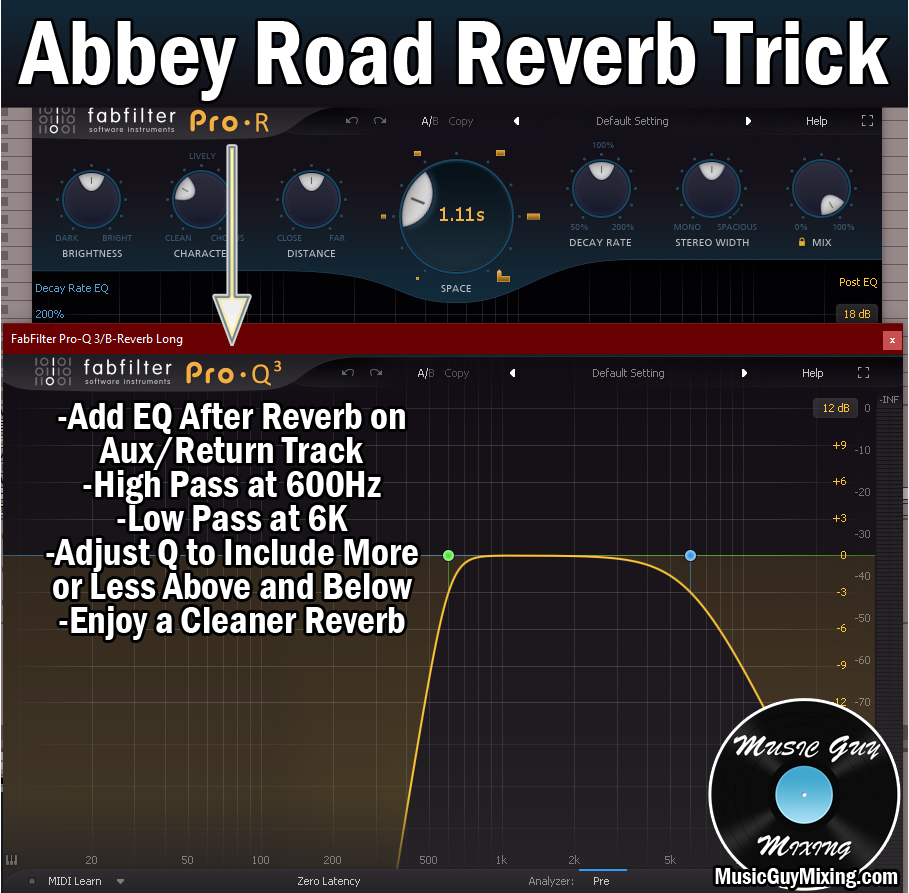
It’s always a good time to high pass your reverb to keep it off of the low end of your mix (one of my tips to clean mixes). Use the onboard filter and set a high pass filter at 600Hz so everything below that point features no reverb. If there is no onboard filter, you can just follow it up on your Return track with your EQ of choice, setting the filter there.
Mix Percentage
When we’re using any effect as a send on a Return track, set it to 100%. Then we can use the send dials for the respective tracks to get the blend we want. Regarding the two reverb Return tracks, I like to save the larger reverb for more pivotal moments in the song, such as when a chorus hits. Alternatively you can use both throughout, just automate it up more during the key moments.
Effective use of autotune and reverb can make your vocals sound more professional, keeping them tightly in tune and giving them a sense of depth to create more space and emphasis throughout your mix, so use the above tips to work both of these effects in (on your vocals or otherwise).