
Crossfading in mixing terms refers to fading one clip into another and the specifics of that fade. Crossfading has a number of applications in your mix and can likewise be used to resolve a number of issues. Let’s talk more about what is crossfading, how to do it, and why or better said when you should do it in your mix by talking about its applications.
Crossfading
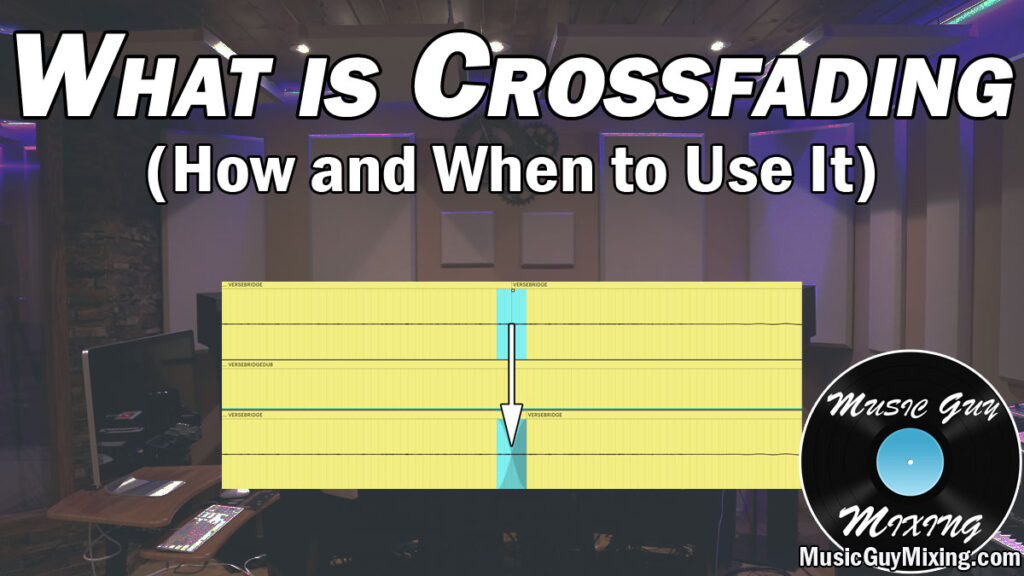
As I just mentioned, in audio mixing terms, crossfading refers to when you’re fading one clip into another. This is opposed to simply fading in or out a single clip (or even fading out the volume of say an entire mix as covered in my overview on mix fades).
Here are a couple clips which are separated, one with the fade out on the tail, the other with a fade in at the start:

In my DAW of choice, Ableton Live, you simply highlight the amount of the clip you want the fade to encompass (going left at the end for a fade out or going right at the start for a fade in), then press Ctrl+Alt+F.
This is good when you want to remove room noise ahead of the (desired) recorded audio, it’s a good way to remove breaths from vocals, etc.
When you’ve got two clips which you need to better gel together, a crossfade is the solution.
How to Crossfade
Crossfading is just as intuitive as creating a fade when you’re doing this in Ableton Live:

As you can see, this time with the two clips touching one another, highlight the amount you want to crossfade between the two tracks and type Ctrl+Alt+F.
You can highlight more of one clip and less of the other which will just mean that the crossfade will go deeper into that former clip.
When to Crossfade
There are a number of useful applications for crossfading in your mix between two clips.
Vocal Comping
Crossfading is especially effective when you’ve got two or more vocal clips delivering the same line that you’re comping together.

Vocal comping is the process of taking multiple takes of a vocal and bringing together the best of the best to put together the strongest take.
Maybe the majority of a single take was good save for a single word which had a better delivery, pitch, etc. on a different take. You’d take that single word from the other take and drag it into the best take in its corresponding spot.
The timing or just energy going in and out of that word will typically be different enough that it will sound out of place if left as is, so we’ll need to adjust this, bringing in a bit more of the adjoining parts of the second take until the timing and energy evens out.
I put together a whole guide on vocal comping so refer to that for more information, but when vocal comping, you want to give the impression to the listener that this was actually a single, unedited take.
Part of that is highlighting enough of those adjoining sections and creating the crossfade to create a subtle, smooth transition between them. Sometimes the crossfade needs to be longer, sometimes shorter. As the image above shows, you can drag that center point left or right (as well as up or down) to favor more of the preceding or following clip, respectively.
Artifact Free Pitch Tuning
As I covered in my guide on how to tune vocals, for a small one-off word or note which is out of tune, the best remedy is to manually tune it.
I showed how to isolate that out of tune part of the clip, then adjust its cents to be flatter or sharper to be in tune accordingly:

Depending on how much you tune that clip and specifically how dissimilar that clip is to the preceding part, artifacts typically in the form of little pops can crop up when you get an instant, abrupt change in pitch on a clip.
In this case, you can highlight a very tiny, equal section of both sides of the clip and create a crossfade to instantly remove these artifacts.
Noise Cleanup
An extension of that last point, anytime you’ve got some noise you want to clean up without removing it altogether, a crossfade can help mitigate its effect.
This is good when you’ve got a click on the vocals from a hard “C” or “K” sound – simply create a break in the clip immediately where it happens and create a crossfade between the two, dragging the point down.
Similar to using a fade to attenuate the pronounced effect of vocal breaths, I prefer this over snuffing out those natural clicking sounds on a vocal altogether as that ends up sounding off or less natural to the listener.
Aesthetic Effects
Crossfading can be used to create a little ear candy or other interesting aesthetic effects, as well.
I like to take two very dissimilar tracks or clips and create long crossfades between them so you get a lot of overlap as one clip overtakes the other. This can be used with pads and the like to form some textured tapestry-like layered bedrock in the background of your mix.
From practical fixes to creating soundscapes, crossfading isn’t just for album sequencing or DJing – an effective command and execution crossfading can improve your mixes across the board.

