Arguably the most important tool at any mixing engineer’s disposal is EQ. This plugin allows you to sculpt your audio, carving out the frequencies which are detracting from the sound or even accentuating the ones which aren’t. While there are many types of EQ, the most versatile type is undoubtedly parametric EQ. Let’s talk how to use parametric EQ (both analog and digital/spectrum based) to drastically improve a track or your entire mix.
How to Use Parametric EQ
Parametric EQ is named as such because of the number of parameters or features it boasts. This is compared to semi-parametric EQ which doesn’t have anywhere near the bells and whistles.
There are four parameters you can generally expect to find on any parametric EQ plugin: frequency, Q, gain, and filters.
Here it is represented on the Waves G-EQ, a relatively simple parametric EQ without the visualizer:

This type of console themed EQ breaks your audio into four frequency bands of low, low mids, high mids, and highs.
Frequency
You can select the exact frequency you want to target in each section. On the low mid, if you set it to 1, this denotes 1000Hz. “.3” is 300Hz and so on.
Note that on an analog style EQ such as this that you’re typically limited to a certain range via each section.
Gain
The gain dials at the top of each section relate to how much you’re adjusting that respective frequency. Moving the gain dial to the left of center/zero will cut that corresponding frequency by the amount of decibels you set it to. Conversely, moving the dial to the right of center/zero will boost that frequency by the amount of decibels you set it to.
Setting the frequency in the LMF section to “1”, then turning the gain at the top to “3” will boost 1000Hz by 3dB.
Q
The two mid bands additionally feature a Q parameter on this particular plugin. Represented by the shape symbols, the Q setting allows you to narrow or widen the span of the band/adjustment by turning it left or right of center, respectively.
Smaller numbers/wider Q settings always sound more natural because you’re including more of the surrounding frequencies, particularly the more aggressively you cut or boost that frequency span. This results in smoother transitions from the peak (or nadir) of the adjustment to the surrounding frequencies as it returns to neutral.
Filters
You’ve also got a high pass filter on the far left of this particular plugin. This allows you to completely remove frequencies BELOW the frequency you set this filter at, allowing the higher frequencies to pass through untouched (hence “high” pass filter even though it’s on the low end).
Alternatively and if you’re like me, you probably prefer a more visual parametric EQ like FabFilter’s Pro Q which boasts a visual frequency spectrum, not to mention more controls.
Taken from my EQ settings guide, this does a much better job at explaining how to use parametric EQ:

To adjust a frequency in this, my favorite plugin, you need only to double click anywhere in the spectrum to create an EQ band at that point.
This brings up the above interface for that specific band which includes the parameters previously shown in the analog setup.
You can turn the frequency dial left or right to adjust the frequency you’re targeting for that band on demand. Turning the gain left or right of center (0) will cut or boost that frequency, respectively.
The Q can be widened or narrowed by turning it left or right of center, as well. Clicking the shape type (listed as “Bell”) on the left can also turn that band into a number of different EQ filter types:
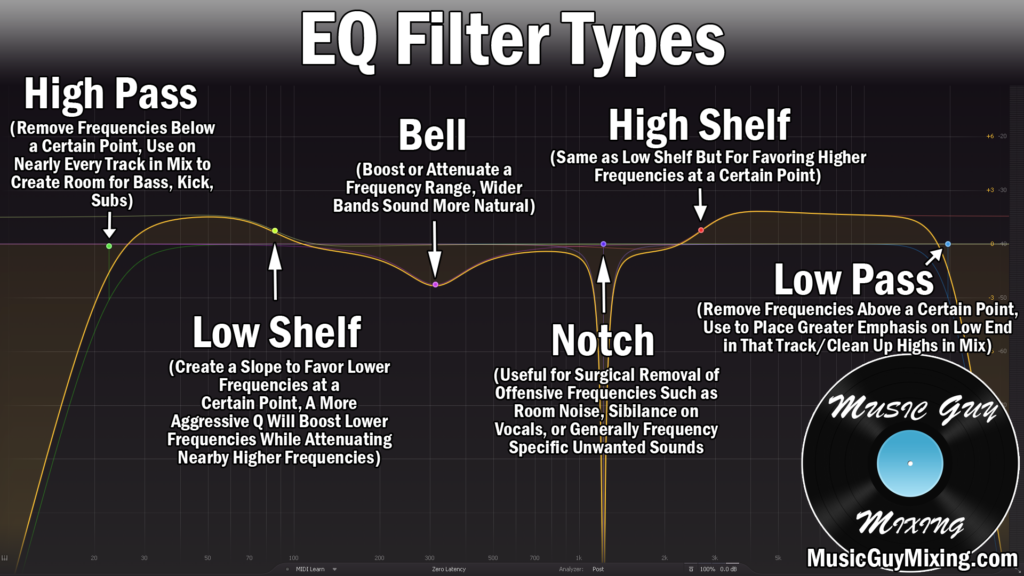
In addition to the aforementioned parameters, you can also adjust the slope of the EQ meaning how steep the grade of the curves are for a more abrupt or gradual transition. Similar to the Q setting, a more gentle slope results in more natural sounding adjustments and audio.
Very notably you can also make any band into a dynamic EQ adjustment. This allows you to cut or boost relative to the level in that particular frequency range from beat to beat on that track. This is useful for achieving more targeted yet transparent adjustments so you don’t cut or boost more than you need to.
You can also do something I recently covered in mid side EQ, making any band exclusively target the center, left, right, both, or all (stereo) sections of your audio.
Now that you have a better understanding of how to use parametric EQ, it’s time for some practical applications.
With that in mind, check out my complete EQ cheat sheet for detailed guides on how to use parametric EQ with regards to where you should specifically cut and boost on every single type of instrument, vocal, and audio in your mix.
