
I recently found myself in a position of needing to transfer Spotify playlists to Deezer, playlists I’ve created over the last 15 years through my Spotify account. With that in mind, I thought I’d put together a very short and easy tutorial on how to transfer Spotify playlists to Deezer.

If you want to jump straight into the tutorial, just skip down to the header below, but I wanted to say a quick word on why I made the leap from Spotify to Deezer.
I’ve been a Spotify guy for well over a third of my life at roughly 15 years ever since they debuted in the US. Even though it’s something we all take for granted nowadays, initially it was mind blowing to have virtually any artist or song you could think of at your fingertips… but I digress!
I recently decided to FINALLY switch my music streaming service allegiance from Spotify after learning that one of their rivals, Deezer, was going to begin to tag and label music identified as being created using AI:

Regardless of your feelings about music created using AI, I think we should all be able to agree that disclosure about music created using AI should be transparent and mandatory. This is especially true as AI music generation becomes more sophisticated and it becomes increasingly difficult to differentiate it from anything else.
Even if you like or don’t care if the music you listen to was created by typing a few words into an AI’s prompt which in turn rendered out a full song based/trained on an infinite catalog of songs which people painstakingly wrote, recorded, mixed, and mastered (yep, I just tipped my hand), there’s no downside to being informed whether it was a person/people or a bot which ultimately created 99% of the song you’re currently listening to.
Thankfully that’s what Deezer has begun doing, and hopefully its peers will follow suit (again peers – no downside!).
That’s enough time on my soapbox, though. The point is I finally made the switch from Spotify to Deezer, so I needed to figure out how to transfer Spotify playlists to Deezer that I had created over the last 15 years. Thankfully it’s a very easy process, so let’s cover how to transfer your Spotify playlists to Deezer.
How to Transfer Spotify Playlists to Deezer
Thankfully the process is incredibly easy and it’s built right into Deezer, though it does use an outside (free) service which many streaming services use for playlist/song transferring called “Tune My Music” which will require you to log into your Spotify account/give it permission in order to get all of your playlists and make the transfer.
While the layout and locations will vary slightly depending on your interface (I’m doing this via the web browser version of Deezer), the process will always be the same.
Step 1 – Access “Transfer Your Favorites” Via Your Account Settings
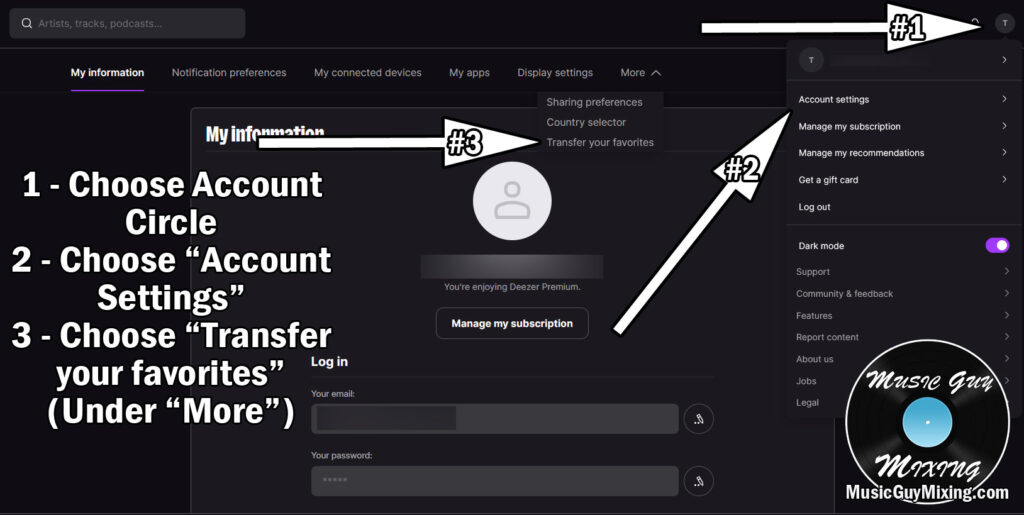
Begin by locating the “Transfer your favorites” link in your account settings.
You can generally find this by clicking on the circle for your account, selecting “Account settings”, then under “More” selecting “Transfer your favorites”:
Alternatively, if you’re using a browser, you can navigate to https://www.deezer.com/account/transfer directly.
This will take you to a page where you’ll be prompted to click “Select a service”. Click that and let’s move on to step 2.
Step 2 – Select Spotify and Log In/Grant Autorization
Like I mentioned a moment ago, Deezer uses a free service called Tune My Music to make the transfer.
As you can see from the page Deezer redirects you to, they work with every major streaming service:
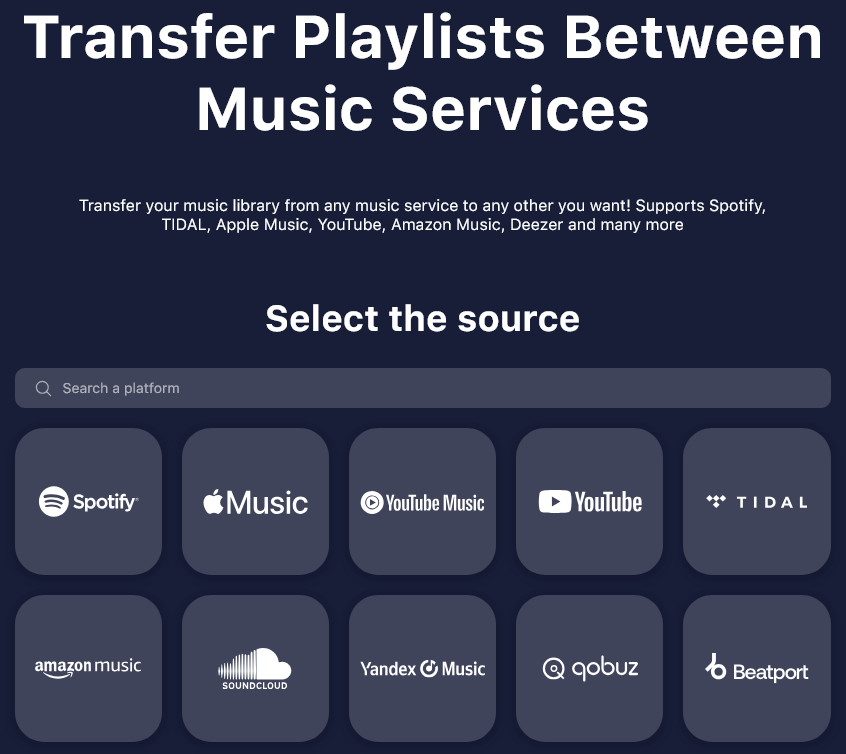
After you select Spotify, you’ll be prompted to log into Spotify and give permission to Tune My Music to access your playlists.
Go ahead and do so and let’s move on to the next step.
Step 3 – Select Playlists
After you connect your Spotify account and give Tune My Music authorization to access your playlists, you’ll get a full list of all of your playlists:
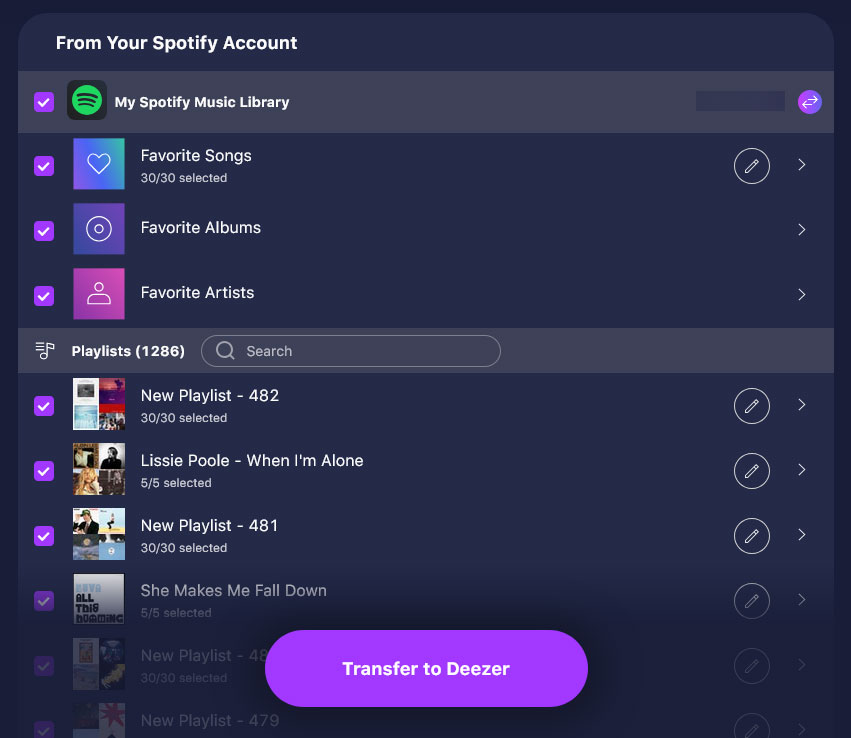
By default, all of your playlists will be ticked.
***PRO TIP*** – Before you start this process, you might want to re-sort your playlists in Spotify from oldest to newest. This is because Tune My Music will import your playlists starting at the top, essentially putting the playlists at the top of your sorting method of choice on the bottom during the import.
As such, if you re-sort in Spotify with the oldest playlists on top, once the transfer is done, your actual LATEST playlists from Spotify will be imported last.
In other words, by doing it this way, after the transfer is complete you’ll find that your playlists will effectively be in the order in which you created them in Spotify with the latest playlists on top.
You can search/untick any playlists you don’t want included in the transfer for whatever reason, but once you’re ready, click “Transfer to Deezer”.
Step 4 – Give Tune My Music Permission From Deezer and Transfer Playlists
After you select your playlists and click “Transfer to Deezer”, you’ll likely get a popup confirming permission from Deezer.
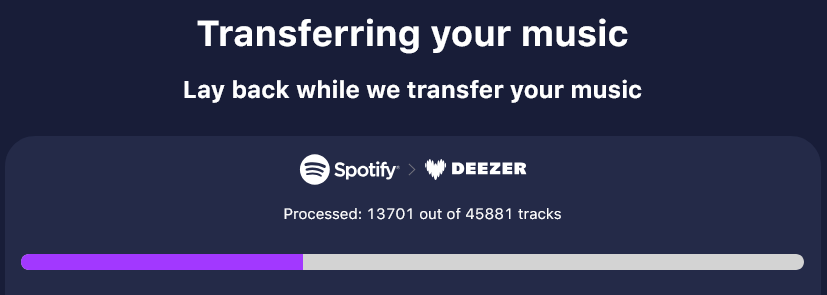
Go ahead and approve that final step, and at this point it will begin the transfer, showing you a progress bar as it transfers.
How long the process takes depends on how many songs you had saved via playlists.
In my case of transferring roughly 45,000 songs over about 1200 playlists, it took about 20 minutes or so. Not too bad for transferring roughly 15 years worth of playlists:
Note that whenever you transfer playlists either from Spotify to Deezer or any service to another service, there’s likely going to be some song omissions between them.
A nice detail about Tune My Music is they’ll create a spreadsheet showing all the songs which were missing in the exchange.
After removing duplicates, I found there were roughly 500 songs which Deezer didn’t have, most of them from the same handful of albums.
It should also be mentioned that a good chunk of those missing songs are songs which Spotify doesn’t have anymore, either (but they’re still “showing” in my playlists). As such, the actual number is lower but it’s not possible to nail down the true disparity as Tune My Music doesn’t specify those instances.
The number of omissions you have will also admittedly vary widely depending on how obscure your musical tastes are. If you listen to mostly top-40, heavily radio played stuff both past and present, it’s very likely there won’t be any missing tracks in the transfer.
But I digress, the transfer is now complete!
For what it’s worth, clicking “continue” at that point will prompt Tune My Music to offer to automatically sync future changes between the two services so that’s an option if you are planning on using both:

Also worth mentioning is if you say “No, I want to use only one of them”, Tune My Music will offer to continue to offer daily syncs, importing any new playlists which you create in Spotify and bring them over to Deezer.
I suppose the difference from that last point is it would sync both ways with the first option, and this is offering to just continue pulling from Spotify to update your Deezer account to reflect that.
You can always do a new sync on demand in the same way if for whatever reason you need to import playlists from say another account or new playlists from your old Spotify account, as well.
The most important thing is that if you now check your Deezer account you’ll see that all of your playlists are right there waiting for you.
And just like that, that’s how you transfer Spotify playlists to Deezer!