The ultimate job of a mixing engineer is to keep the listening engaged and interested in the mix at all times. Aside from making everything sound its best through common tools like EQ and compression, a lot of the best ways to keep the listener engaged come down to adding in little touches we colloquially refer to as “ear candy“. These are little treats for the listener beyond the meat and potatoes of a good otherwise mix. A classic example of ear candy is automating different aspects of your mix to keep the mix dynamic and changing. Another prime example of ear candy is employing some reverb throws in your mix.
Let’s focus on that, talking how to create and use a reverb throw in your mix.
What is a Reverb Throw

A reverb throw refers to replicating and emphasizing an existing sound in your mix by way of (typically a lot of) reverb.
While you can apply it to all kinds of elements in your mix, we’re going to focus on its most common target, vocals.
Typically in using a reverb throw, you’d select a specific word from a phrase, then apply reverb to it on an outside channel somehow, leaving the original vocal intact but then creating a reverb soaked repetition of that word.
This is done as the final word in a phrase a lot of times so that the reverb fills up the subsequent gap in the vocal and mix.
A popular and creative use of reverb throws is to use sidechain compression on the reverb, sidechaining that compressor to the original vocal so that it’s “ducked” until the original vocal ends, then you get a big tail of the reverb ringing out which fulfills the same purpose while keeping the vocal clean.
Reverb throws are best used sparingly in your mix so as not to lose their intended effect of catching the listener by surprise.
Now let’s talk how to make a reverb throw, as there’s a number of ways to create them in your mix.
How to Make a Reverb Throw
There are a couple key ways to create a reverb throw in your mix, so let’s talk how to implement it.
Aux/Return Track Reverb Throw
The best way to implement reverb throws in your mix is to set up a dedicated Aux track (or in Ableton Live, a Return track).
As I’ve covered in the past, Aux/Return tracks are special tracks which you can put plugins on then blend them into tracks in your mix.
One of the benefits of doing this is so that you can apply that effect with the same settings to multiple tracks in your mix all at once.
This benefit extends to reverb throws as it simplifies the application of them to multiple tracks in your mix.
Step 1 – Create an Aux Track and Drop a Reverb on It
To begin, simply create an Aux or Return track in your mix. In Ableton Live, this can be done by typing Ctrl+Alt+T.
With that aux/return track in your mix, drop your reverb of choice on it.
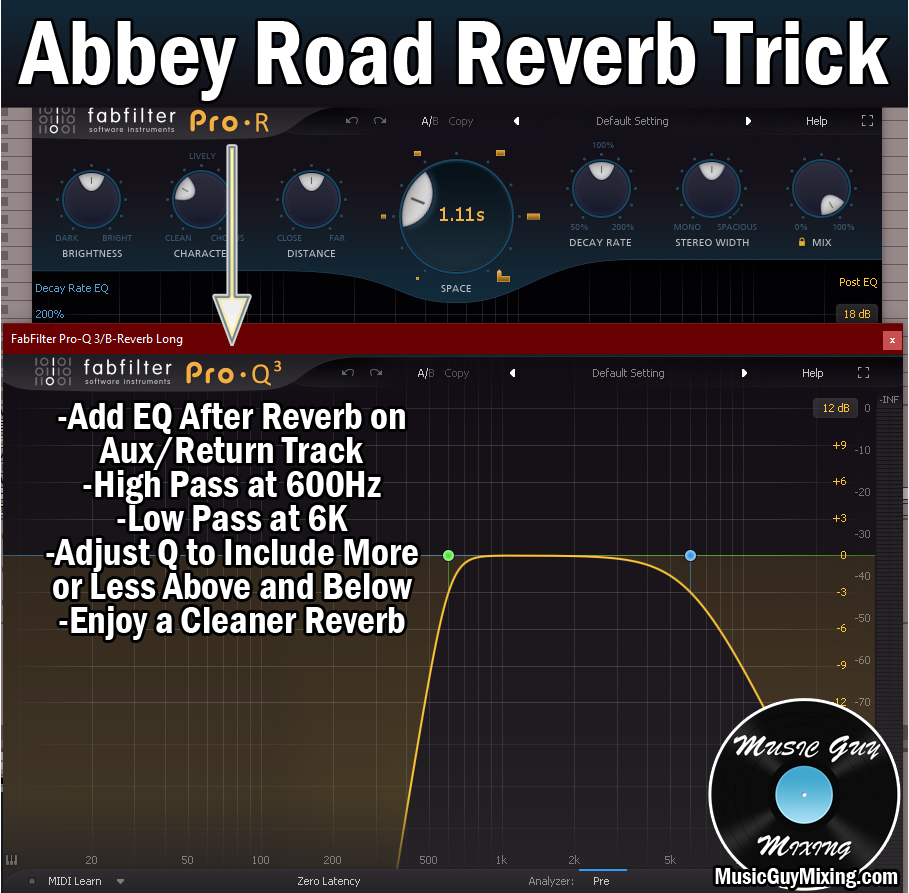
I like FabFilter’s Pro-R 2 for its versatility in dialing in whatever sound I want on the reverb, plus another feature which I’ll talk about in the next method.
Step 2 – Set Up the Reverb to Taste
Speaking of the sound of the reverb, there are a lot of parameters to consider, so let’s highlight a few of them.

Predelay
The reverb’s predelay is the amount of time in milliseconds after the dry audio plays that the reverb is heard. Normally this is used to create some separation from the dry audio to preserve the transient punch of your audio, not to mention create more of the effect that the reflection sound that is the reverb is occurring in an actual space, giving it a more organic or better said realistic impact.
With reverb throws, we can use this as a natural delay and create a larger buffer from the dry audio. One of the many aspects I love about Pro-R 2 is that you can sync the predelay to the BPM of your song. Simply click the lock icon above the predelay parameter and choose the interval of your choosing:

If you want a near immediate throw after the dry vocal, choose the 1/32 note. Going higher up will obviously create more of a buffer.
While you can certainly choose your own custom time via leaving it on “Free” and turning the dial all the way up to 500ms, this helps keep things more square.
Size/Time/Decay
Different reverb plugins refer to this as different things, but the size/time/decay or “Space” in the case of Pro-R 2 refers to the length of the reverb. A larger/longer figure here will result in a longer lasting reverb tail, simulating a larger space. This is the main driver of the impact of that reverb throw.
Normally when we’re using reverb in our mix (see the best reverb settings), we want to go for a shorter time because we’re probably applying that reverb uniformly across an entire track, bus, or even mix. This helps keep that reverb tail from stepping on the transient of the next note/word/drum hit, etc. Beyond that, a shorter time keeps the reverb sounding more natural and subtle which is typically the aim.
With a reverb throw, it’s sporadic one-off uses, so we’re not concerned about realism or it stepping on anything. As such, you can get away with much longer, 2+ second lengths to get the right effect. Like every parameter on your reverb throws, you’ll have to adjust everything to taste to best fit your mix and situation.
Width
Width is pretty straightforward – this refers to how much of the stereo field the reverb is going to take up.
This again comes down to taste and situation; a lot of times you want to keep this narrow and possibly panned off-center (via the panning dial on the Aux/Return track). Alternatively you may also decide that it sounds good nice and wide, taking up the majority of the stereo field.
Flavor
For lack of a better word, this is the sonic characteristic of the throw. You can control this via any number of parameters which are likely unique to your reverb. On Pro-R 2, we’ve got character, thickness, distance, brightness, and even the onboard EQ to sculpt the flavor to make it sound darker, brighter, closer, etc.
Some situations call for bright and narrow, others dark and wide (or some combination).
Mix
The logic behind the “Mix” parameter is one aspect which isn’t to taste; when using an effect, ANY effect on an Aux/Return track, set its “Mix” to 100% so that we’re exclusively getting the sound of the reverb from this track.
Send Dial
Not a parameter on the reverb itself, the send dial dictates the volume of the reverb throw. Turning it up all the way maximizes its visibility following that dry vocal or whatever you’ve applied it to.
Step 3 – Automate as Necessary
It’s important to note that when using reverb throws via an Aux/Return track as I’m describing here, you need to automate this on and off via the send dial. In other words, when you have the word you want the reverb throw on (in the case of vocal throws, for example), you would automate the volume for that track’s respective reverb send dial on exclusively for that word:

In the above image, I’ve engaged “Automation Mode”, clicked the volume for the specific reverb Return track I wanted to automate the volume for, then highlighted and dragged the volume for the send dial for that reverb up for the specific word I wanted to highlight and apply it to.
You would then hear the throw exclusively on that word, admittedly with whatever predelay you set. Note that you can automate the predelay for that reverb, as well, as necessary, like all parameters. This can require more adjustments, but it requires less tracks and instances of the reverb than setting up your reverb throws manually.
Manual Duplication
Speaking of setting up your reverb throws manually, this is a more straightforward albeit more resource consuming method.
Here you can simply duplicate the track you want your throws on, then drop the reverb directly on that track.
Here once again I’m setting the “Mix” to 100% as we don’t want any of the dry audio on this track; the original track is for that.
This is admittedly a much simpler method as it requires no automation; you simply delete all the audio save for the instances you want the reverb throw(s) on.

You also don’t need to worry about predelay in this case as you can just drag the audio relative to the original dry audio to achieve whatever delay you want.
Obviously you can’t apply this to multiple tracks in this scenario, but if all you want is a single reverb throw or at least a single track to feature reverb throws on, this is the most efficient way to do it.
Sidechain Compression
I mentioned “ducking” the reverb throw earlier. This refers to using a compressor to essentially silence the effect of the reverb while the audio you’re applying it to is playing. Once the dry audio stops, the tail of the reverb springs to life.
It’s basically the reverse of gated reverb – a technique I talked about in the past where the reverb is featured while the audio is playing but immediately and abruptly ends with the audio by way of a gate.
Ducking your reverb throws allows you to keep your dry audio dry while getting a very ear candy-ish effect from the immediately reverberating tail.
Yet another reason why I like FabFilter’s Pro-R 2 is the onboard “Ducking” parameter as this achieves this same effect without any extra processing.
We can use either method described above with this feature to get the reverb out of the way of the dry audio. Here I’m using it with the manually duplicated method I just described:

To get the effect, simply turn up the “Ducking” parameter to taste. With the slider midway, you get a little bit of the reverb coming through, albeit not as much as you’d get if it were off all the way.
With the slider all the way up it completely mutes the reverb while the dry audio plays, making the reverb’s tail come on stronger and the effect much more dynamic and palpable.
To achieve this effect with a reverb which doesn’t feature onboard ducking, you can follow the reverb plugin up with a compressor. This works with either method – whether your reverb is on an Aux/Return track or on a duplicated track (either way the “Mix” should be set to 100%) you can follow it up with a compressor.
Engage the sidechain compression feature, setting the track you want to apply the reverb throw to as the target/trigger for the compression.
From here, it’s standard sidechain compression procedures:

The main thing is to just set the threshold and ratio to be low and high enough, respectively, to completely reduce the gain on the reverb until your dry audio is no longer playing. The release is important, as well, as 50ms creates a quick but necessary buffer so you don’t abruptly hear that reverb at full volume as soon as the dry audio ends.
With this setup, you can create a very cool effective of that reverb asserting itself to fill up gaps on your vocal or other tracks without muddying up the dry audio itself.
Those are the basics of using reverb throws in your mix; when used effectively in choice moments you can fill in gaps or just catch your listener off guard and keep them engaged with the mix.
Just remember to use your reverb throws responsibly. Going overboard and ending every word with a throw or using the sidechained method across the entire vocal will wear out that effect’s and ear candy’s welcome in your mix quickly and cause the listener to lose interest.