I’ve been talking about ear candy elements to add to your mix as of late – elements which aren’t part of the bedrock of the mix but little surprises and touches to enhance things and keep your listener engaged. A delay throw is a common form of ear candy in that it’s something that’s best used in moderation or at a minimum to keep it fresh and effective (like all types of ear candy in your mix). Let’s talk about what a delay throw is briefly and more importantly how to use a delay throw effectively in your next mix.
What is a Delay Throw
A delay throw is an isolated part of a track which gets repeated after it’s initially heard.
While you can and should be creative in thinking of what tracks in your mix to apply this to, delay throws are most commonly applied on vocals.
The repeat of the vocal is typically used either for emphasis or to fill an otherwise empty space in the mix at that instant.
Note that this process isn’t the same as simply inserting a delay on your vocal chain. That’s something you would do when you wanted a bit of delay on your entire vocal.
With delay throws, we just want to repeat a short word, syllable, note, etc.
How to Use a Delay Throw
There are a few ways to create a delay throw in your mix, but I’ll narrow it down to a couple.
Delay Throw Method #1 – Aux/Return Track + Automation
My preferred method of creating and using delay throws is to make use of an Aux/Return track, inserting the delay plugin on there, then automating the effect up as necessary via a track’s respective send dial to get both the level and timing that you want.
This is cleaner and more efficient than other methods because we can reuse the Aux/Return delay track as a normal, constant delay for multiple tracks in our mix, albeit at lower respective send levels.
This also allows us to color the delayed signal using the filters and other onboard controls of our delay.
The delay time is obviously the most important parameter here and will determine the timing of the throw.
The BPM of your song and the effect you want to achieve will both determine this the ideal delay time for your delay throw.
For instance, a slower BPM around 100 might work well with a shorter delay time, a faster BPM might work well with a longer one; the best delay time is situational.
If you’ve got more time at the end of the measure which feels empty, you might opt for a longer delay time. If it’s a tighter window, you’ll opt for a shorter delay time.
Part of determining the right delay time will come from actively testing it on the part you want to create the throw for.
Engage the automation mode of your DAW (see my tutorial on using automation in Ableton Live – my DAW of choice) and turn up Aux/Return track’s respective send volume dial for the track you want the delay throw for the span of that part.
In the image below, I’ve inserted a delay plugin on a dedicated Aux/Return track I’ll be using for my delay throws.
I’m then turning that delay throw’s volume up for my vocal track I want the effect on via its send dial to -8dB.
I’m doing this on the final word in each phrase on the vocal in the verse, each for the duration of one beat:
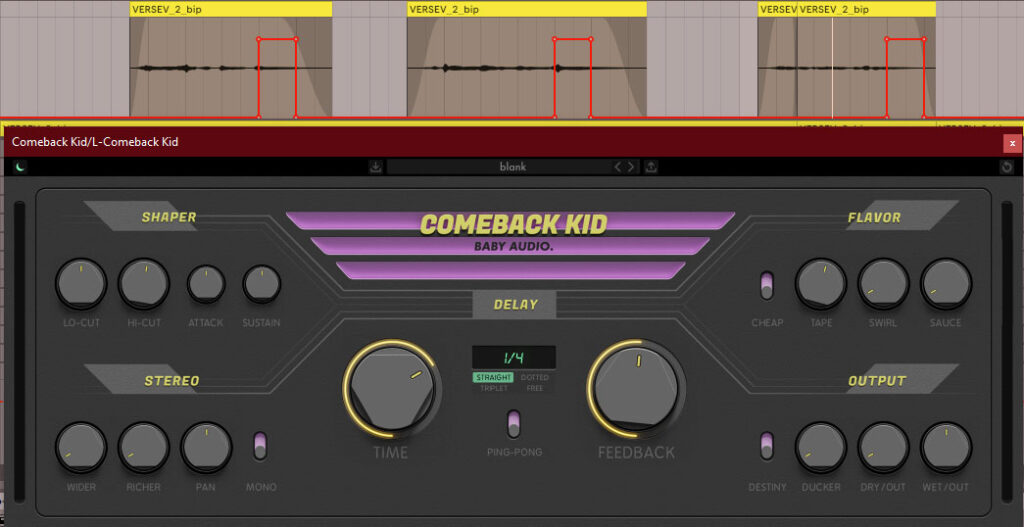
Given the timing I have to work with in the verse, 1/4 note is the perfect delay time for occupying this space.
I’m using one of my favorite delays for throws, Comeback Kid by Baby Audio. I love its straightforward interface for dialing in the timing, feedback, width, and color that you want.
Vocal Throw Settings
Let’s talk a bit more about the settings I’m using here, specifically the ones which will be universal to any delay plugin you might be using, stock or otherwise.
Delay Time
I just talked about this – the delay time is the main parameter which stirs the drink so to speak. While the classic vocal throw is thought more of 1/2 or 1/1 note, as I mentioned, this is typically context based, and in my case 1/4 note fit perfectly for the space and timing I had in the verse.
This makes that delay throw come in 1 beat after the original vocal. In this case, as soon as that vocal’s tail ends, the delay throw immediately hits.
If I were doing this for a chorus when things are a bit more open (at least in this song), I might opt for a longer delay of 1/2 note to let that original vocal breathe a bit more, creating clear separation.
Experiment with this after you’ve highlighted and raised the send volume for your vocal (or instrumental) part to determine what fits best. The more you do it, the more quickly you’ll be able to identify the best timing for your unique part in subsequent mixes.
Feedback
Typically referred to as feedback on most delays, this creates additional reflections. You can typically set whether or not these echoes will be in time or decay more randomly. In the above example, I’ve got the feedback set slightly above 50% to create an in-time decaying effect.
Turning this off/setting it to 0% would result in more of a single echo, slapback effect which you might want. This is cleaner than using feedback which can muddy up or otherwise step on the next notes if left unchecked and set to the max, but in my case a little feedback to create those additional reflections helped to fill the space and sounded more natural in the context of the part.
As an aside, I love Comeback Kid’s “Ducker” dial in the bottom right section which ducks out the delayed signal when the main vocal/track is playing. This acts as a kind of gate to keep things nice and clean and that vocal out front.
Stereo
This applies to the width of the reflections and this is to taste. You can have the delay throw encompass the entire stereo field or you can keep it narrow (in the center or side(s) via the panning control).
Comeback Kid has a “Ping-Pong” feature which bounces each feedback reflection (when applicable) back and forth between both channels for when you want more of a cheesy aesthetic effect.
Filter
The “Shaping” section’s filter controls are just that – you have high and low pass filter dials for filtering out below and above certain frequencies, respectively.
You’ll find these on virtually any delay plugin you use and they’re useful for making the delayed signal contrast with the signal it’s acting as a reflection of.
You’ll note Comeback Kid features a “Flavor” section for coloring the sound, but sometimes rolling off both ends of the delay throw is the only color you need.
Using the filter controls to create a little contrast is useful, but how much you filter out is to taste and situational. For what it’s worth, I’m filtering below 550Hz and above around 2k to create a bit of a muffled effect on the delay throw.
Output
When using this or any effect as an Aux/Return track, remember to set the Wet/Dry to 100% wet so that we’re not getting a blend of two different timings; we only want the delayed signal in this case.
On Comeback Kid there’s actually separate gain dials for both the dry and wet, so I went ahead and turned the dry all the way down and left the wet at 100%.
From here, it’s just about playing with the level of the send to get the right balance relative to the original dry signal.
Delay Throw Method #2 – Copy and Paste on an Empty Track
Alternatively, you can have a dedicated “delay throw” track where you copy and paste the section of the track you want to delay.
This is more of the manual approach as no delay plugin is necessary in this case – if we want a 1/4 note delay, we’d move it over one beat on the timeline in our DAW:
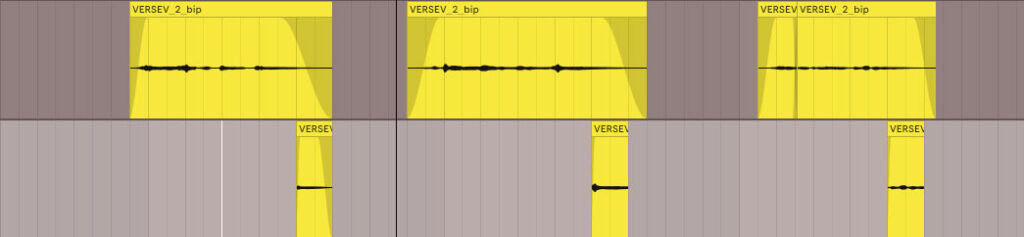
In the above image, I duplicated the original vocal track (preserving all the processing/effects inserted on it), deleted everything but the single beat from each section which represented that final word from each phrase.
Lastly, I shifted them all to be 1 beat later on the timeline, representing that 1/4 note delay. If I wanted a 1/2 note delay, I’d move them another beat (and so on).
This is simpler in some senses as you can then just adjust the volume as you like on the fader for that track, as well. Of course, you’d have to add any extra processing to replicate the settings we got from using the delay plugin in the other method.
This includes adding filters, adjusting the width, panning, coloring, etc.
Delay Throws Tips
In terms of when to use a delay, one of the applications I mentioned earlier is filling an otherwise empty space.
This is useful when you’ve got a vocal line which ends hard on a relatively shorter word, but there’s still time/it’s not the end of the measure.
In these instances, you can sense that a vocal throw would fill that space nicely (you might find yourself singing that same word/syllable in rhythm in that space).
If you’ve listened to even a small sampling of popular music, you’ll be well familiar with the moments which are ripe for a delay throw; let that instinct guide you.
Don’t limit yourself to just using it on vocals, but by the same token, don’t go overboard with delay throws as less is always more.
They’ll quickly lose their luster to the listener if you line your mix wall to wall with delay throws, so be judicious with your application of them regardless of which of the above methods you employ to get the most out of them in your next mix.